
User Guide



- 24 -
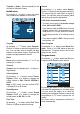
Source Menu
By pressing
_
/
`
button, select the fifth icon.
Source menu appears on the screen.
In source menu, highlight a source by press-
ing
a
/
b
button and switch to that mode by
pressing
_
/
`
or OKbutton.
Sound in PC mode
Connect the PCs Audio output to the TVs
PC Audio In socket with an audio cable.
Other Features
TV Status
Programme Number, Programme Name,
Sound Indicator and Zoom Mode are dis-
played on the upper right side of the screen
when a new programme is entered or
but-
ton is pressed.
Mute Indicator
It is placed in the upper left side of the screen
when enabled.
To cancel mute, there are two alternatives;
the first one is pressing the
button and the
second one is increasing/decreasing the vol-
ume level.
PIP and PAP modes
Press the button to switch to PIP mode.
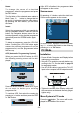
At PIP Mode, a small picture (PIP picture) is
displayed on the main picture. There are 1
size and 4 positions (upper left, upper right,
bottom left and bottom right) available for the
PIP window. You can use
a
/
b
button to
change the PIP position. Aspect Ratio of the
PIP window is fixed and 4:3.
When PIP Mode is entered, the default active
window is PIP window and the active window
is indicated by a green frame around it. The
active window can be changed by pressing
the
_
/
`
button. The status info OSD belongs
to active window. The place of the status
OSDs are same for both windows.
For PIP picture restrictions, see table on
page 35.
Press the
button twice to switch to PAP
mode.
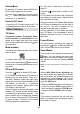
At PAP Mode, two pictures with equal sizes
are displayed on the screen. Aspect Ratios
of the windows are fixed.
When you switch to PAP Mode, Main window
in PIP Mode is displayed on the right side of
the screen. The active window can be
changed by pressing the
_
/
`
button.
Source restrictions of PAP Mode are same
as in PIP Mode. It is not possible to show 2
different channels from the TV tuner at the
same time.
Freeze Picture
You can freeze the picture on the screen by
pressing the
button. At PIP and PAP lay-
outs; only the main picture can be frozen.
Zoom Modes
Zoom mode can be changed by pressing the
button. You can change the screen size
according to the picture aspect ratio. Select
the optimum one from the following ZOOM
modes.
Note: You can only choose 4:3 and FULL in PC
mode.
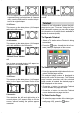
Auto:
When a WSS (Wide Screen Signalling) sig-
nal, which shows the aspect ratio of the pic-
ture, is included in the broadcast signal or the
signal from an external device, the TV auto-
matically changes the ZOOM mode accord-
ing to the WSS signal.
When the AUTO mode does not function cor-
rectly due to poor WSS signal quality or
when you want to change the ZOOM mode,
change to another ZOOM mode manually.
Full:
This uniformly stretches the left and right
sides of a normal picture (4:3 aspect ratio) to
fill the wide TV screen.