
User Guide



58
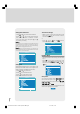
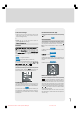
PIP Picture
PIP picture is displayed on the screen with “ ” key..
By pressing “OK” key, PIP window is selected and
border of the PIP window becomes green. PIP posi-
tion is changed by “
” / “ ” key. There are six dif--
ferent PIP positions. PIP size is decreased by “
”
key and increased by “
” key. Three different PIP
size are available.
Programme in the PIP window is increased / de-
creased by “P/CH+” / “-P/CH” keys. AV mode is
also available in PIP window. Digit keys are inactive for
PIP window. PIP window is removed from the screen
by “
” key..
PIP is available in Digital, terrestrial and PC mode.
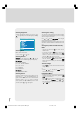
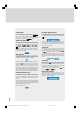
PC and Picture (PAP)
PC and Picture layout is displayed on the screen by
pressing "
" key. The screen is divided into two
parts at this layout. PC window is selected as the ac-
tive window automatically and the border colour of
the Picture window is blue. By pressing "OK" key, Pic-
ture window can be selected and its border will be-
come green. PC and picture are replaced with each
other by pressing "
" or " " key. Only the sound of
the active window can be heard during PC and Pic-
ture.
To remove PC and Picture layout from the screen,
press "PC" key.
Feature Menu
In the main menu select “Feature” using “ ” or “ ”
key then enter the Feature menu pressing “
”, “ ”
or “OK” keys.
The items in this menu are described at Feature menu
starting page 49.
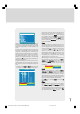
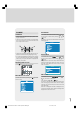
Feature
PC SOUND MODE:
This item selects the sound source for PC mode. But
when the PIP is displayed and highlighted in green
border, sound switches to whatever is displayed in
the PIP. Whenever you close the PIP or make the PIP
border blue again by disselecting the PIP, sound
switches back to PC Sound Mode.
Geometry Menu
In the Main menu, select “Geometry” using “ ” or
“
” key, then enter the Geometry menu pressing
“
”, “ ” or “OK” keys.
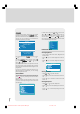
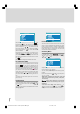
Geometry
Adjust the required horizontal or vertical position or
Hsync Phase by “
”, “ ” keys.
You can make position adjustment directly by Auto
position.
Select Auto position by “
” or “ ” keys and press
“
” or “
” key..
“Please wait”
is displayed at the bottom of the menu
After a few seconds screen geometry is adjusted
automatically.
Warning: Auto position adjustment recommended
to be done with the full screen image for the proper
adjustment.
To store this menu setting select “Store” by “
” or
“
” keys and then press “OK” key, “Stored” will be
displayed for few seconds at the bottom of menu.
1549 UK-IDTV TV-DVB-22'' TFT IB-2-(Revised - 19x27).p6501.12.2004, 13:4958