
User Guide



54
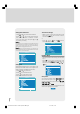
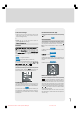
Autostore:
To enter Autostore menu, press the blue key. To learn
the features of this function see "Autostore" below.
Autostore, searches and stores all channels automati-
cally on your TV, according to the transmission of
programme systems in your area.
Warning
Country
Continue
Cancel
All Prestored Programmes
Will Be Erased
A.P.S. Is Running
Please Wait
First of all choose the “Country” by using “ ” or
“ ” key..
To cancel Autostore before starting, press “TV”
key. To select “Continue” use “ ” or “ ” key and
press “ ” or “ ” key..
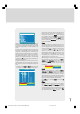
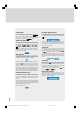
After Autostore is finalized, a programme list will ap-
pear on the screen. In the programme list you will see
the programme numbers and names assigned to the
programmes.
If you do not accept the locations and/or the pro-
gramme names of programmes, you can change
them in Programme menu.
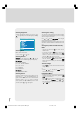
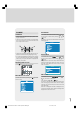
Source Menu
You can switch your TV to AV modes by pressing di-
rectly “AV” key or by selecting in source menu from
the main menu.
While in AV mode, you can also switch your TV to TV
or other AV modes by selecting in source menu from
the main menu.
Menu
In main menu, firstly use “ ” or “ ” key then use
“ ” / “ ” or “OK” key to enter Source menu. In
source menu, move the cursor by “ ” or “ ” key
and then press “OK” key or “ ” or “ ” keys when
the cursor is on the required item. The selected mode
comes automatically on the screen.
TV
AV-1
AV-2
AV-3
S-VIDEO
PC
DIGITAL
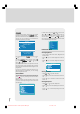
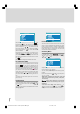
PIP Picture Menu
Setting Brightness
• As you enter the PIP Picture menu, Brightness will
be the first item.
• Press “ ” key to increase brightness of PIP Pic-
ture.
• Press “ ” key to decrease brightness of PIP Pic-
ture.
PIP Picture
Setting Contrast
• Using “ ” or “ ” key select Contrast.
• Press “ ” key to increase contrast level of PIP Pic-
ture.
• Press “ ” key to decrease contrast level of PIP
Picture.
Setting Sharpness
• Using “ ” or “ ” key select Sharpness.
• Press “ ” key to increase peaking level of PIP Pic-
ture.
• Press “ ” key to decrease peaking level of PIP
Picture.
1549 UK-IDTV TV-DVB-22'' TFT IB-2-(Revised - 19x27).p6501.12.2004, 13:4954