
User Guide



46
Sound Menu
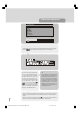
To change sound settings
• Enter the Sound Menu directly by pressing the Red
key or,
• As you enter the main menu, sound will be the first
item. In the main menu, select Sound using “ ” or
“ ” key, then enter the sound menu pressing “ ” ,
“ ” or “OK” key..
Setting Volume:
As you enter the sound menu, Volume will be the first
selected option.
• Press “ ” key to increase volume.
• Press “ ” key to decrease volume.
Or you can directly change the volume settings using
“ +” (to increase) or
“- ” (to decrease) key..
Sound
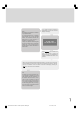
Setting Balance
It allows adjusting the distribution between the left and
right speakers.
• Using “ ” or “ ” key select Balance.
• Press “ ” key to change balance to the right.
• Press “ ” key to change balance to the left.
When balance control is in mid position, the cursor is
displayed with one arrow.
213
546
879
0
Menu System
Your TV has been designed with a menu system to
provide an easy manipulation of a multi-function sys-
tem. The TV is controlled by choosing the com-
mands, which are displayed on the screen.
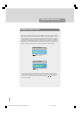
Press the "M" key. The main menu will be displayed at
the middle of the screen.
Menu
To select a sub-menu use “ ” or “ ” key, and press
“ ” or “ ” key or directly press “OK” key..
MAIN MENU
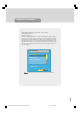
The menu system is described below.
The short way in order to enter the menus, press :
"M" Key,Main Menu.
Red Key,Sound Menu.
Green Key,Picture Menu.
Yellow Key,Feature Menu.
Blue Key,Install Menu.
" INFO" Key,,Programme Menuin
TV mode or, Source Menu In AV mode
“M” key has two functions; first is opening or closing
the main menu, and the second is closing the sub-
menu and then opening its parent menu.
1549 UK-IDTV TV-DVB-22'' TFT IB-2-(Revised - 19x27).p6501.12.2004, 13:4946