
User Guide






- 14 -
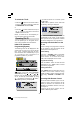
image size
Press / button to select image size.
By pressing
/ button, you can
change image size to wide, auto and fill all.
You can enter image size directly by press-
ing the
button.
colour temperature
You can enter colour temperature directly by
pressing "PP" button.
This feature is used to change the colour
temperature.
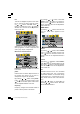
Press
/ button, to select colour tem-
perature. By pressing
/ button, you
can select one of these options: Normal,
Warm and Cool.
dynamic skin tone
Dynamic skin tone effect corrects the hue of
colours that matches to skin tones.
Press
/ button to select dynamic
skin tone. By pressing
/ button, turn
skin tone ON/OFF.
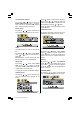
When PC is Connected To TV:
h position
By pressing
/ button, select h posi-
tion. Press
button to slide screen to the
left. Press button to slide screen to the
right. h position can be adjusted between 0
and 100.
v position
By pressing
/ button, select v posi-
tion. Press button to slide screen up.
Press
button to slide screen down. v
position can be adjusted between 0 and
100.
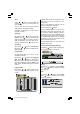
options menu
By pressing / button, select the
fourth icon. Options menu appears on the
screen.
menu background
By pressing / button, select menu
background. You can change menu back-
ground to translucent or opaque by press-
ing
/ button.
language
By pressing
/ button, select lan-
guage. Press
/ button to select the
menu language you want.
room lighting
Press
/ button to select room light-
ing. By pressing
/ button, you can
select one of these options: Normal, Bright
and Movie.
sleep timer
By pressing
/ button, select sleep
timer. You can set the sleep time to 0,
5,10,15,...,115 or 120 minutes by pressing
/ button. The sleep timer is used to
turn the TV off after a pre-defined period.
child lock
You can use this feature to prevent children
turning the TV on or changing programs or
adjustments etc. without remote control.
By pressing
/ button, select child
lock. The child lock feature can be set to ei-
ther on or off by pressing or button.
(1*/,6+8.LQFK3L[HO:RUNV0%6$0:0S