
User`s manual




103
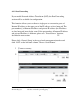
Local Port Please input the range of local (source) port number
Range (4): that will be affected by this rule. If you want to apply this rule on
port 80 to 90, please input ’80-90’; if you want to apply this rule
on a single port, input the port number, such as ‘80’.
Remote IP Specify the remote (destination) IP address that will be
Address: (5): affected by this rule. Please input the starting IP address in the
left field, and input the end IP address in the right field to define
a range of IP addresses, or input the IP address in the left field
to define a single IP address.
Remote Port Please input the range of remote (destination) port
Range (6): number that will be affected by this rule. If you want to apply
this rule on port 80 to 90, please input ’80-90’. if you want to
apply this rule on a single port, input the port number, such as
‘80’. If the remote (destination) IP address and/or port number
is universal, leave the field blank.
Traffic Type (7): Please select the traffic type of this rule, available options are
None, SMTP, HTTP, POP3, and FTP. You can select a specific
traffic type for this rule, if you want to make this rule as a IP
address based rule (apply the limitation on all traffics from / to
the specified IP address / port number), select ‘None’.
Protocol (8): Please select the protocol type of this rule, the available options
are TCP and UDP. If you do not know what protocol your
application uses, please try ‘TCP’ first, and switch to ‘UDP’ if
this rule does not work.
After you finish with all settings, please click ‘save’ button (9), you’ll be
brought back to previous menu, and the rule you set will appear in the
current QoS table.
If your action is incomplete, you will be prompted with an error message
when you click ‘Save’ button, please correct your input by the instructions
given by the error message.