
Datasheet



16
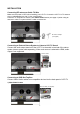
2. Move the cursor to “Prog. No“, and select the desired channel position with ◄►.
3. Move the cursor to “System“, and select the system according to your local area with◄►.
4. Move your cursor to “Search”, and search the detectable channels with ◄►.
5. Move your cursor to “Fine Tune”, and adjust the picture with ◄►.
6. Move to Store, then Store the instruction with ENTER.
Note: The channel will be stored instead of the former program.
Name: To enter a name for program with 0~9, +-. /, and A~Z. Press ◄ or ► to get into “Name”.
1. To enter a name:
Press red key (on the remote control) to edit a name for the channel.
Use ▲▼ to select the desired letter and use◄► to move the cursor to enter next letter. After the
desired name is entered, press blue key (OK) to confirm.
2. To Erase/ Add channels:
Use ▲▼ to select the desired channel.
Press yellow key to erase the channel or press green key to add it.
When using PROG▲▼ key, the channels you erased will be passed over. You may press green
key to add the erased channels or use Auto Scan function to re-present them.
3. To exchange one channel with another:
Press blue key to enter the function of “Sort”, and the following screen will show.
If you want to exchange channel 1 with channel 2: