
User's Manual

Turningthedeviceon
● Ifthedevicehassufficientbatterycharge(orisconnectedtoapowersource),thedevice
maybepoweredupbypressingandholdingthepowerbuttonfor3seconds.
Turningthedeviceoff
● Fromonthedevicemaybepowereddownbypressingandholdingthepowerbuttonfor
3seconds.
Settingupthedevice
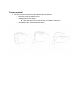
● Afterturningonthedevice,whendonningitforthefirsttimeensurethat:
○ Thedisplayisvisiblebyadjustingthedisplayunitin/outuntilitcanbeseeninits
entirety
○ Thedisplayunitsitsjustaboveyournormalfieldofvisionbyadjustingthenose
bridgepadin/outuntilitispositionedappropriately
● YoumustlogintoyourGoogleAccounttousetheGlasssoftware
Normaloperation
● Whenon,thesystemisidlesina“suspended”statewherebythedisplayisoffandthe
mainprocessoristurneddown,inordertoconservepower
● Activatethesystemtoturnthedisplayonbytappingthetrackpad
● Photosmaybetakenfromsuspendedoractivestatebypressingthecamerabutton
Charging
● UsestandardmicroUSBcabletoplugGlassintowallpowersupplyorPCtocharge