
Operation Manual



4. Multimedia Applications
4.1 Camera
Your phone is equipped with an 8.0 megapixels camera to take photos and videos.
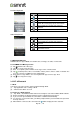
Camera Function
Icon
Function
Icon
Function
Switch to smile shot
mode
Tap to record a video
Switch to Panorama
mode
Tap to take a photo
HDR mode
Display the flash mode
Switch to Normal mode
Tap to switch between
rear and front camera
Tap to configure
camera settings
Displays the last
image. Tap to go to
Review Screen.
Taking a photo
(1) Tap Applications tab > Camera. The screen switches to landscape view automatically.
(2) Tap to take a picture.
Recording a video
(1) Tap Applications tab > Camera.
(2) Switch to recorder mode.
(3) Aim the phone at the subject.
(4) Tap to start to record, tap again to stop recording.
4.2 Music
You have to copy your audio files to the storage card before playing music, because the music
player only plays audio files saved in the storage card of your phone. Tap Applications tab > Music.
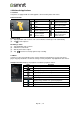
Playback screen: Displays the playback area with the playback controls.
Icon
Function
Album art picture or animation
The display area of audio information.
Tap to go to the previous song.
Tap to play or pause the song.
Tap to go to the next song.
Slide to go forward or backward.
Tap to go to Now playing list. Displays the list of currently
playing songs and those on queue for playback.
Tap to shuffle, when it’s green means the shuffle is on.
Tap to enable or disable the repeat function.
Rey R3 |12