
Operation Manual
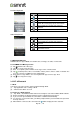

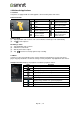


TouchPal keyboard
Android keyboard
2.3 Multimedia Message
A Multimedia message or MMS can contain letters, an image, an audio, or a video file.
To send MMS from Message screen
(1) Tap Applications tab > Messages.
(2) Tap to create a new message.
(3) Enter the recipient’s phone numbers in the “Type name or number” field
(4) Tap to attach picture, video, record audio, contact, pictures, videos, audio or calendar. The
message converts to a MMS message automatically.
(5) Enter your message with the on-screen keyboard in “Type text message” filed.
(6) Tap to send your message.
3. Wi-Fi & Bluetooth
3.1 Wi-Fi
Your device can connect to the detected network through Wi-Fi.
(1) Tap Applications tab > Settings > Wi-Fi.
(2) Switch to turn “Wi-Fi” on or off.
To connect to a Wi-Fi network
(1) Tap “WI-FI”, check Wi-Fi function and turn it on. Begin to search the available Wi-Fi networks.
(2) Detected networks are displayed below. Tap one network then tap “Connect”.
(3) If you select an open network, the connection is established automatically.
(4) To connect a secured connection, you will be prompted for the password. Enter the password
then tap “Connect”.
(5) When Wi-Fi is connected, the connection icon will be displayed on the status bar.
Icons Function
Tap to close input keyboard.
Tap to active Capital letter mode.
Tap to delete words.
Switch different language inputs and methods.
Tap to activate the symbols and numerical
keyboard.
Tap to move to the next text zone.
Icons Function
Tap to active Capital letter mode.
Tap to activate the symbols and numerical
keyboard.
Tap to input something by voice.
Tap to delete words.
Rey R3 |10