
Quick Reference Guide

Table Of Contents
- Contents
- About This Reference
- Checking Out Your Notebook
- Setting Up and Getting Started
- Working safely and comfortably
- Connecting the AC adapter
- Connecting the dial-up modem
- Connecting to a broadband modem or network
- Starting your notebook
- Turning off your notebook
- Restarting (rebooting) your notebook
- Using the status indicators
- Using the keyboard
- Using the EZ Pad touchpad
- Adjusting brightness
- Adjusting the volume
- Turning your wireless radio on or off
- Using Drives and Accessories
- Managing Power
- Traveling with Your Notebook
- Maintaining Your Notebook
- Upgrading Your Notebook
- Troubleshooting
- Safety guidelines
- First steps
- Troubleshooting
- Audio
- Battery
- CD drives (external)
- Diskette drive (external)
- Display
- DVD drives (external)
- Ethernet
- File management
- Hard drive
- Internet
- Keyboard
- Media Center
- The Media Center video display looks bad on your TV
- You need to configure your Media Center to output to a TV
- You want to change display settings to get better TV or DVD image quality
- You want to know whether you can burn videos that were recorded with your Media Center computer to a DVD
- You want to know whether you can play recorded videos on other computers
- You want to know whether you can play recorded videos on your home DVD player
- Memory
- Memory card reader
- Modem (cable or DSL)
- Modem (dial-up)
- Your modem does not dial or does not connect
- You cannot connect to the Internet
- Your 56K modem does not connect at 56K
- Your fax communications program only sends and receives faxes at 14,400 bps when you have a 56K modem
- The modem is not recognized by your notebook
- The modem is noisy when it dials and connects
- Mouse
- Networks (wired)
- Networks (wireless)
- You turned wireless networking on, but it takes a while to connect
- Your connection on the network seems intermittent or your wireless network is running slower than you expect
- You are in a wireless network, you can see the network, but cannot communicate, send files, print, or get to the Web
- You are in a wireless network, but no available networks are listed in the Connect to a network dialog box
- Your wireless network is listed as a preferred network, but it has an “x” on it
- Internet Explorer is unable to access the Internet
- You cannot see other computers on your network
- You cannot connect to your network
- Passwords
- PC Cards
- Pointing device
- Power
- Printer
- Sound
- Status indicators
- Touchpad or pointing device
- Video
- Telephone support
- Legal Information
- Index
APPENDIX A: Legal Information
124
Telecommunications per Industry Canada CS-03 (for
products fitted with an IC-compliant modem)
The Industry Canada label identifies certified equipment. This certification means that the
equipment meets certain telecommunications network protective, operation, and safety
requirements. The Department does not guarantee the equipment will operate to the users’
satisfaction.
Before installing this equipment, users should make sure that it is permissible to be connected
to the facilities of the local telecommunications company. The equipment must also be installed
using an acceptable method of connection. In some cases, the inside wiring associated with a
single-line individual service may be extended by means of a certified connector assembly. The
customer should be aware that compliance with the above conditions may not prevent
degradation of service in some situations.
Repairs to certified equipment should be made by an authorized Canadian maintenance facility
designated by the supplier. Any repairs or alterations made by the user to this equipment, or
equipment malfunctions, may give the telecommunications company cause to request the user
to disconnect the equipment.
Users should make sure, for their own protection, that the electrical ground connections of the
power utility, telephone lines, and internal metallic water pipe system, if present, are connected
together. This precaution may be particularly important in rural areas.
The
Ringer Equivalence Number
(REN) assigned to each terminal device provides an
indication of the maximum number of terminals allowed to be connected to a telephone
interface. The termination on an interface may consist of any combination of devices subject
only to the requirement that the sum of the Ringer Equivalence Numbers of all the devices does
not exceed 5.
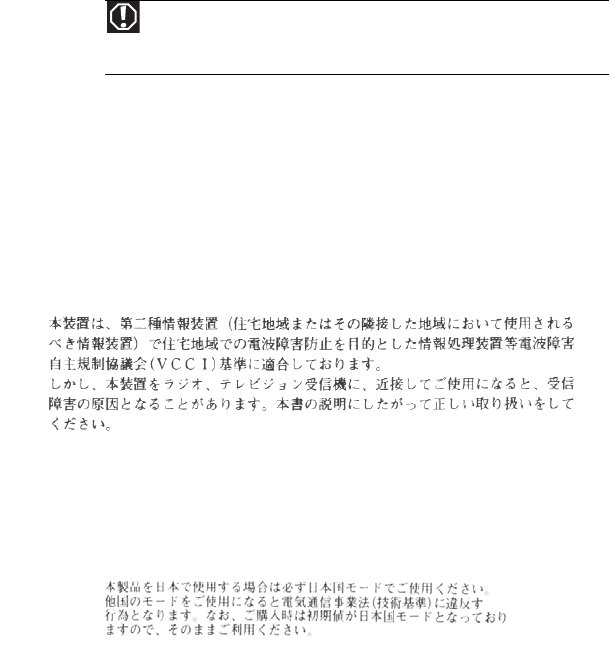
Japan
Japanese Modem Notice
Warning
To avoid electrical shock or equipment malfunction do not attempt to
make electrical ground connections by yourself. Contact the appropriate
inspection authority or an electrician, as appropriate.