Quick Start & Troubleshooting Guide T ABLE OF C ONTENTS Product Registration 2 Important Information 3 Computer Basics 4 Safety and Comfort ...................................................... 4 Safety Precautions ................................................ 4 Health Precautions ................................................ 5 Getting to Know your Computer.................................. 6 Control Devices (Keyboard/Touchpad)................. 6 Volume Controls.................................
P R OD U C T R EGISTRATION When using your computer for the first time, it is recommended that you immediately register it. This will give you access to some useful benefits, such as: • Faster service from our trained representatives • Membership in the Gateway community: receive promotions and participate in customer surveys • The latest news from Gateway Hurry and register, as other advantages await you! How to Register During the initial startup of your computer, a window will invite you to register.
I MPOR TANT I NFORMATION Thank you for purchasing a Gateway computer! This guide has been designed to introduce you to the features of your computer and assist in your computing experience. It will also help you maintain your computer and troubleshoot in case you encounter a problem. To make the most of your computer, Gateway recommends you perform the actions described below before you start working with your computer.
C OMPUTER B AS IC S SAFETY AND COMFORT Safety Precautions Please follow the guidelines below to use your computer comfortably and to avoid health problems. Computer Environment Make sure that the computer: • Is used on a stable surface, stand or table. A fall can seriously damage the computer. • Is not used on a surface that vibrates, or used when taking part in sport, exercise or other activities in a dynamic environment.
Unplug your computer from the wall outlet and refer servicing to qualified service personnel when: • the power cord or plug is damaged, cut or frayed, • liquid was spilled into the product, • the product was exposed to rain or water, • the product has been dropped or the case has been damaged • the product exhibits a distinct change in performance, indicating a need for service • the product does not operate normally after following the operating instructions Note: Adjust only those controls that are covere
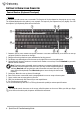
GETTING TO KNOW YOUR COMPUTER Control Devices (Keyboard/Touchpad) Keyboard The keyboard is used to enter text or commands. The functions of the keys depend on the program you are using. The keyboard displayed in this guide is just an example. The layout of your keyboard may vary slightly. For a full description of your keyboard, please refer to InfoCentre. 1 2 3 9 4 8 10 7 5 6 6 1. Numbers: Used to enter numbers and special characters.
Click one of the touchpad buttons to select or activate the command the cursor is pointing at. Ensure that you use a light touch on the touchpad surface. 1. Left-click to select the item under the pointer. Double-click to start the program under the cursor, or select an entire word when typing text. 2. Right-click to bring up a pop-up menu. 3. Two quick taps on the surface of a touchpad will perform the same action as a double-click.
Remote Control (optional) Enjoy all your favourite digital entertainment in one place with the easy-to-use Media Center (see page 18) and remote control! Installing the Remote Control and optional receiver Before starting Windows Media Center (see page 18), prepare the remote control. 1. If your computer does not feature an internal infrared receiver, a USB receiver is required. If supplied, connect the USB receiver to a USB port 3 on the computer. 2.
Removing a card from an External Card Reader 1. Click on the Safely Remove Hardware icon in the Notification Area (next to the clock). 2. Click on Eject SD Card (or the name of the device). 3. Wait until a Safe to Remove Hardware message is displayed. 4. Remove the card. 1 2 Optical Drives An optical drive is able to read from (or write to) a variety of CD or DVD discs (e.g. Audio CD, CD-ROM, DVD). Note: Small computers may omit larger devices such as optical drives.
✓ Keep the disc tray closed whenever you are not using the drive. Do not touch the optical lens in the drive, if the lens is dirty, the optical drive may not function correctly. ✓ Do not wipe the lens with a normal cloth. Use a cotton swab to gently clean the lens. ✓ The optical drive is classified as a Class 1 laser product. Note: This product incorporates copyright protection technology that is protected by U.S. patents and other intellectual property rights.
✓ Certain battery types require maintenance to avoid a reduction in battery life. ✓ Do not leave your battery in direct sunlight. Extreme temperatures can affect the performance of your battery. It’s best to use and charge your battery at room temperatures. Replacing Batteries Battery packs can be removed and replaced. Read the precautions on handling the battery before changing the battery.
Note: It is not possible to use a PC Card device in an ExpressCard slot. eSATA - An eSATA port allows you to connect a compatible external storage device (usually a hard disk drive) with a high-speed SATA connection. Display and Audio Ports VGA Port - Connect to a monitor with a VGA port. The appropriate cable is usually included with the monitor. DVI Port - Connect to a monitor with a DVI (Digital Video Interface) port. The appropriate cable is usually included with the monitor.
time by clicking on Start > Control Panel > User Accounts and Family Safety. To learn more about user account management, please see the section User Account Control on page 33. Turning your Computer OFF Make sure all applications are closed before you turn off your computer. Turning off your computer will ensure that a data is saved and it will use as little power as possible (there may be a small power drain to charge batteries), however your computer will take longer to start.
Power Options The power options of Windows can control your computer’s power state and allow you to save energy. Depending on your needs, you can define the power scheme that suits you best. Three power saving modes are provided: Sleep, Hibernate and Hybrid sleep. Sleep Sleep effectively ’pauses’ your computer, keeping all activity in memory, ready to start again. Rousing your computer from Sleep takes just a few seconds. A small amount of power is still required to store the contents of the memory.
I NTERNET AND S OFTWARE USING WINDOWS AND YOUR SOFTWARE Gateway computers include software to help you use your computer; the programs and categories available on your computer depend on the model purchased. Most of this software is ’pre-installed’ and ready to be used; however some software may be provided on a CD or DVD and must first be installed if you wish to use it. To do so, insert the installation CD or DVD.
Gateway Recovery Management To prepare your computer for system recovery options, you should create a set of recovery discs as soon as possible. Recovery discs take some time to create, but for long-term reliability, the effort is worth it. Creating recovery discs If your computer experiences problems that are not recoverable by other methods, you may need to reinstall the Windows operating system and factory-loaded software and drivers.
3. Insert a blank disc into the drive indicated in the Burn to list, then click Next. The first disc begins recording, and you can watch its progress on the screen. When the disc finishes recording, the drive ejects it. 4. Remove the disc from the drive and mark it with a permanent marker. Important: Write a unique, descriptive label on each disc, such as ‘Windows Recovery Disc 1 of 2’ or ‘Apps/Drivers Recovery disc’. 5. If multiple discs are required, insert a new disc when prompted, then click OK.
The updates will be downloaded from Gateway and automatically installed on your computer. Your updated version of InfoCentre will contain detailed specific information on your computer’s configuration. The My Computer button contains all the technical information about your computer's components and useful tips on how to upgrade your computer. Other buttons give you access to additional information, such as tutorials on performing day-to-day tasks and tips and information on using the Internet.
Note: If you have an Internet connection, the Guide (Electronic Program Guide) allows you to view a list of current TV shows. This shows channel and network information, as well as the title, description and scheduled broadcast time of shows. Cyberlink PowerDVD If your computer is equipped with a Blu-ray drive, you may watch Blu-ray movies with PowerDVD. You may start PowerDVD by inserting a Blu-ray disc and waiting for the program to start automatically.
FIRST STEPS ON THE NET Protecting your computer It is vital to protect your computer from viruses and attacks over the Internet (see Internet Security Offer on page 15 and Security on page 28). An comprehensive Internet security program is proposed when you first start your computer. You should activate this protection as soon as possible, certainly before you connect to the Internet. Choose an ‘Internet Service Provider’ Using the Internet has become a natural part of daily computing.
Network connections A LAN (Local Area Network) is a group of computers (for example, within an office building or home) that share a common communications line and resources. When you set up a network, you can share files, peripheral devices (such as a printer) and an Internet connection. You can set up a LAN using wired technologies (such as Ethernet) or wireless technologies (such as WiFi or Bluetooth).
Diagram of a working network 1. 2. 3. 4. 5. 6. 7. Access point/router Desktop computer Modem Printer Portable computer PDA/Smartphone Network cables (RJ45) 4 5 1 ➊ 6 3 7 2 ➐ Ad-Hoc internet sharing The Internet Connection Sharing (ICS) feature of Microsoft Windows allows you to share a single Internet connection with multiple computers. Built-in support for IEEE 802.11 wireless LANs (WLANs) allows you to create an ad-hoc wireless network.
Surf the Net! To surf the Internet, you need a program called an Internet browser. Internet Explorer provides an easy and secure web browsing experience. As soon as you have your Internet access installed and you are connected, click on the Internet Explorer shortcut located on the Windows desktop and take your Internet experience to a new level! Internet Explorer features The image below shows the Internet Explorer browser’s start page.
manually organise your files. Google Desktop also helps you gather new information from the Internet with Sidebar and Google Gadgets, visually appealing mini-applications that can display anything such as your new email, the local weather forecast to personalised news. With Google Desktop, you get personalised information when you want it, right on your computer’s desktop. Simply click on the Google Desktop search icon to start the program. Note: To learn more about Google™ products and features, visit www.
H ELPDESK SAFE COMPUTING To make the most of your new computer and ensure it runs smoothly for a long time, you should use the programs below and regularly perform the actions described in this guide. Maintenance Recommended maintenance tasks There are several tasks you should perform periodically (about once per month) to ensure your computer stays in good health: Error Checking Using the Check Disk tool regularly prevents your system from getting unreliable and information getting lost.
1. Perform a Disk Cleanup and close all open programs. 2. Click on Start > Computer. Right-click on the OS icon and select Properties. 3. Click on Tools and Defragment now.... 4. Click on the volume you want to defragment and click on Defragment to start. The whole process may take several hours to complete. It is best not to use your computer while running the Disk Defragmenter as any changes on your system may cause the process to restart.
Windows System Restore. System Restore monitors the changes to your computer and automatically creates restore points to revert to a previous time if necessary. It can undo harmful changes to your computer and restore its settings and performance, while saving your personal data files (such as documents, browsing history, drawings, favourites, or emails). Note: When you restore your computer you will need to reinstall any programs you installed after the restore point was created.
1. Click on Restore my computer to an earlier time, and then click on Next. 2. Select from the calendar the date when the restore point was created and click on Next. All the restore points that were created on the selected date are listed by name in the list box to the right of the calendar. 3. In the confirmation screen, click on Next to restore the computer to the selected date and time.
Definitions What is a Virus? Malicious software, typically called ‘viruses’, are programs designed to infect and damage computers. Most viruses are transmitted over the Internet, emails or malicious Web sites. A typical virus will replicate and pass itself undetected to multiple computers. Other forms of nuisance, such as Trojan horses, worms or spam can infect your computer in various ways, using up resources or clogging up a network.
Protect your computer with security software. Several types of security software are necessary for basic online security. Security software essentials include firewall and antivirus programs. A firewall is usually your computer's first line of defense-it controls who and what can communicate with your computer online.
✓ Pay attention to privacy policies on Web sites and in software. It is important to understand how an organization might collect and use your personal information before you share it with them. ✓ Guard your email address. Spammers and phishers sometimes send millions of messages to email addresses that may or may not exist in hopes of finding a potential victim. Responding to these messages or even downloading images ensures you will be added to their lists for more of the same messages in the future.
Windows Firewall Windows has a firewall that protects your computer when connected to the Internet. It stops programs from accessing the Internet without your permission. Certain program need access to the Internet to function properly, or even function at all. If this is the case, you will usually be asked to allow access when you install a program, or the first time you use it. To check firewall > Control Panel > System settings, click on Start and Security > Windows Firewall.
User Account Control The User Accounts control panel can help prevent unauthorized changes to your computer. User Accounts will ask you for permission or an administrator password before performing actions that could potentially affect your computer's operation or that change settings that affect other users. When you see a User Account message, read it carefully, and then make sure the name of the action or program that's about to start is one that you intended to start.
H E L P DE S K DIAGNOSE & REPAIR We all experience problems with our computer from time to time... Before calling the Customer Contact Centre, please read the following. This troubleshooting guide will help you diagnose and solve some common problems. Please note that the solutions proposed in either one of the cases below may not be limited to that specific case and may be used to solve other computer issues.
A screen saver may be active. 1. Press a key to reactivate the display. 2. If you wish to change the screen saver properties: a. Close all open programs, with the exception of Windows. b. Right-click on an empty spot on the Windows desktop. c. Select Personalize from the menu. d. Click on the Screen saver icon. e. Adjust the screen saver properties and the energy saving features to your needs. Check your connections: 1.
Check InfoCentre to learn more about your computer. Don’t forget to download your InfoCentre updates! Caution: You should only open your computer if you are an advanced user, or if you are asked to do so by a qualified Gateway technician. The screen freezes when the Gateway logo displays When the computer starts, it first performs a test of all system requirements. When the computer is functioning correctly, it emits a short beep and starts up.
Uninstall software. If your computer does not function correctly after you have installed new programs, try uninstalling them. Click on Start > Control Panel > Programs > Programs and Features. Go back to previous restore point with Windows System Restore (see page 27). Disconnect or remove additional devices. Please read Removing additional external devices, Removing the battery and Removing additional internal hardware on page 35.
Go back to previous restore point with System Restore. System Restore monitors the changes to your computer and automatically creates restore points to revert to a previous time if necessary. It can undo harmful changes to your computer and restore its settings and performance, while saving your personal data files (such as documents, browsing history, drawings, favourites, or emails). Please see page 37 for more details.
second set of cursor keys (on "full-sized" keyboards), or they revert to normal letter keys (on certain compact keyboards). My touchpad does not work 1. Your computer may feature a Touchpad Lock button. The Touchpad Lock button toggles the touchpad on or off to avoid unwanted cursor movements when using the keyboard. Check that this featuree is not active. 2. The controller properties may not be properly set up.
3. Your computer's volume control settings need adjusting. a. Click on the speaker icon in the Notification Area. b. Click and hold the slider to adjust the volume level. c. Make sure the Mute option is NOT active. d. If necessary, click on Speakers to change the type of audio output (for example, if you are using digital audio over an HDMI cable). e. To display more volume controls, click on the device or application image. 4. Your sound hardware does not work properly. > Control Panel > Hardware a.
6. You have moved and your dialling location has changed. a. Change your settings by clicking on Start > Control Panel. Change the View by: option to Large icons, then select Phone and Modem. b. Specify your new location and any special options for your phone line. c. Click on OK. d. Change the View by: option back to Category when you have finished. 7. You have used the Recovery Management program. a. If your Internet access required you to install software, you should reinstall this software.
Click on the Customize button in the Notification area section. Place a tick in the box in front of Always show all icons and notifications on the taskbar and then OK. c. The Networks connection icon indicates if you have a reliable network connection (either wireless or over a cable). d. Click on the icon, then select Open Network and Sharing Center to see more information. 2. A connection to the remote site cannot be established. Try again later or check with your ISP whether the service is available. 3.
The printer is not connected properly No power is supplied to the printer Check that the cables are securely connected to the printer and computer. Use a grounded AC power outlet (or power strip). Remember to shut down your computer and printer before disconnecting or reconnecting any cables. Plug the printer into a different wall socket. Restart the computer and printer again and try printing to determine if the previous socket was faulty.
Hardware Caution: Gateway strongly recommends that you never change your computer's hardware configuration. Incorrect operations may damage your computer and is not covered by any warranty. You should only open your computer when asked to do so by a qualified Gateway technician. Before purchasing a new hardware device, check that it can be used on your computer. 1. Check your computer's specifications (see Check your computer's specifications on page 43). 2.
H ELPDESK RECOVERING YOUR SYSTEM If the troubleshooting steps (page 34) did not help fix your problem, you can run the Gateway Recovery Management program. This will restore your computer to the same state as when you purchased it, while giving you an option to retain all settings and personal data for later retrieval. To recover your system 1. Create recovery discs as soon as you can. You can use these discs later for recovering your system from significant hardware and software problems.
3. Click on Contents. A list of software and device drivers opens. 4. Click on the install icon for the item you want to install, then follow the on-screen prompts to complete the installation. Repeat this step for each item you want to reinstall. Returning to a previous system condition Microsoft System Restore periodically takes ’snapshots’ of your system settings and saves them as restore points.
Returning your system to its factory condition If your computer experiences problems that are not recoverable by other methods, you may need to reinstall everything to return your system to its factory condition. You can reinstall using either your hard drive or the recovery discs you have created. Caution: This complete recovery deletes everything on your hard drive, then reinstalls Windows and all software and drivers that were pre-installed on your system.
R EGULATORY I NF ORMATION Caution: Wireless devices are not user-serviceable. Do not modify them in any way. Modification to a wireless device will void the authorization to use it. Contact Gateway for service. Caution: The transmitting device embedded in this notebook may not be used with any antenna other than the one provided with the notebook.
A telephone line cord with a modular plug is required for use with this device. The modem is designed to be connected to the telephone network or premises wiring using a compatible modular jack which is Part 68compliant. See installation instructions for details. The Ringer Equivalence Number (REN) is used to determine the number of devices which may be connected to the telephone line. Excessive RENs on a telephone line may result in the devices not ringing in response to an incoming call.
TELECOMMUNICATIONS PER INDUSTRY CANADA CS-03 (FOR PRODUCTS FITTED WITH AN IC-COMPLIANT MODEM) The Industry Canada label identifies certified equipment. This certification means that the equipment meets certain telecommunications network protective, operation, and safety requirements. The Department does not guarantee the equipment will operate to the users’ satisfaction.
EN62311 - Generic standard to demonstrate the compliance of low power electronic and electrical apparatus with the basic restrictions related to human exposure to electromagnetic fields. This product must be used in strict accordance with the regulations and constraints in the country of use. For further information, contact the local office in the country of use.
Gateway recommends that you add a ferrite core round clip to each cable connecting your Gateway computer to a hardware device that has not been delivered with your computer. Ferrite reference: 28A-2029 from Steward (two loops) For Ethernet LAN cable, use FTP shielded cables only (cat ≥ 5). During product certification, Gateway used the following cable quality: USB2.
E NVIRONMENT GATEWAY’S COMMITMENT TO ENVIRONMENTAL PROTECTION Environment has been at the heart of our products. Gateway is committed to limit the environmental impact of its products during product lifecycle. Starting at design phase, with a very strict procurement policy, maximum attention is given to electronic components in order to limit their weight in heavy metals such as lead, cadmium, chromium, mercury, etc. Suppliers are asked, for each part of any product, to respect all regulations.
S OFTWARE L I C E N S E Note: Most of the software applications are already preinstalled on your Gateway computer. They are ready to use or to set up. However, some titles require a CD or DVD to run. You will find these discs in your computer's packaging. Gateway License Agreement (CD and/or DVD Products). This copy of the original is your proof of license. Please treat it as valuable property. Important! Read carefully before installing the software. The following License Agreement applies to you.
I ND EX A AC Adapter ..................................................... 10, 12 Aerial ................................................................... 12 Audio CDs ....................................................... 18, 40 Audio ports........................................................... 12 Autoplay............................................................... 19 B Backups................................................................ 14 Batteries...........................................
Microphone.......................................................... 12 Modem .......................................................... 20, 41 Multimedia files .................................................... 18 N Network connections ............................................ 21 Norton Internet Security.................................. 28, 30 O Optical drives ......................................................... 9 P Pointer...................................................................