
Owner's Manual


48
www.gateway.com
Chapter 4: Using Drives and Ports
Inserting a memory card
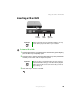
To use a memory card:
1 Remove the protector from the memory card slot.
2 Insert the memory card into the memory card slot with the label
facing up and the arrow on the label pointing towards the notebook.
3 To access a file on the memory card, click Start, then click My
Computer
. Double-click the drive letter (for example, the E: drive),
then double-click the file name.
Removing a memory card
To remove a memory card:
1 If you are removing a CompactFlash card or IBM Microdrive, release
the eject button by pressing the eject button once, then eject the
card by pressing the eject button again.
-OR-
If you are removing a MemoryStick, MemoryStick Pro, SecureDigital,
or MultiMediaCard, push the memory card into the notebook. The
memory card pops out slightly.
2 Pull the memory card out of the notebook.
3 Insert the protector into the memory card slot.
Important Do not use the remove hardware icon in the taskbar
to remove the memory card. If you use the remove
hardware icon, your notebook may not recognize your
memory card reader until you restart your notebook.