
Quick Reference Guide





CHAPTER 5: Managing Power
58
Changing advanced settings
Advanced power settings let you assign different power
saving modes to the power button and Sleep system key. You
can also select which power saving mode is activated when
you close the LCD panel.
To change advanced power management settings:
1 Click (Start), All Programs, Accessories, then click
Windows Mobility Center. The Windows Mobility
Center window opens.
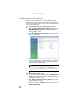
2 Click (Change power settings). The Select a power
plan window opens.
3 Click a setting on the left side of the screen that you
want to change. The top three settings are not tied to
a power plan. The bottom three settings modify the
currently selected power plan.
To turn on Hybrid Sleep mode:
1 On the Select a power plan window, click Change plan
settings for the plan you are using. The Change settings
for the plan window opens.
2 Click Change advanced power settings. The Power
Options dialog box opens.
3 Click the + in front of Sleep, then click the + in front of
Allow hybrid sleep.
Help
For more information about changing the power
management settings, click Start, then click Help and Support. Type
the keyword power management in the Search Help box, then
press E
NTER.