
Quick Reference Guide

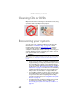



Table Of Contents
- Contents
- About This Reference
- Checking Out Your Notebook
- Setting Up and Getting Started
- Working safely and comfortably
- Connecting the AC adapter
- Connecting the dial-up modem
- Connecting to a broadband modem or network
- Starting your notebook
- Turning off your notebook
- Restarting (rebooting) your notebook
- Using the status indicators
- Using the keyboard
- Using the EZ Pad touchpad
- Adjusting brightness
- Adjusting the volume
- Turning your wireless radio on or off
- Using Drives and Accessories
- Managing Power
- Traveling with Your Notebook
- Maintaining Your Notebook
- Upgrading Your Notebook
- Troubleshooting
- Safety guidelines
- First steps
- Troubleshooting
- Audio
- Battery
- CD drives
- Diskette drive (external)
- Display
- DVD drives
- Ethernet
- Express cards
- File management
- Hard drive
- Internet
- Keyboard
- Media Center
- The Media Center video display looks bad on your TV
- You need to configure your Media Center to output to a TV
- You want to change display settings to get better TV or DVD image quality
- You want to know whether you can burn videos that were recorded with your Media Center computer to a DVD
- You want to know whether you can play recorded videos on other computers
- You want to know whether you can play recorded videos on your home DVD player
- Memory
- Memory card reader
- Modem (cable or DSL)
- Modem (dial-up)
- Your modem does not dial or does not connect
- You cannot connect to the Internet
- Your 56K modem does not connect at 56K
- Your fax communications program only sends and receives faxes at 14,400 bps when you have a 56K modem
- The modem is not recognized by your notebook
- The modem is noisy when it dials and connects
- Mouse
- Networks (wired)
- Networks (wireless)
- You turned wireless networking on, but it takes a while to connect
- Your connection on the network seems intermittent or your wireless network is running slower than you expect
- You are in a wireless network, you can see the network, but cannot communicate, send files, print, or get to the Web
- You are in a wireless network, but no available networks are listed in the Connect to a network dialog box
- Your wireless network is listed as a preferred network, but it has an “x” on it
- Internet Explorer is unable to access the Internet
- You cannot see other computers on your network
- You cannot connect to your network
- Passwords
- Pointing device
- Power
- Printer
- Sound
- Status indicators
- Touchpad or pointing device
- Video
- Telephone support
- Legal Information
- Index

CHAPTER 7: Maintaining Your Notebook
66
Cleaning the keyboard
You should clean the keyboard occasionally by using an
aerosol can of air with a narrow, straw-like extension to
remove dust and lint trapped under the keys.
If you spill liquid on the keyboard, turn off your notebook and
turn the notebook upside down. Let the liquid drain, then let
the keyboard dry before trying to use it again. If the keyboard
does not work after it dries, you may need to replace it. A
replacement keyboard may not be covered by your warranty.
Cleaning the notebook screen
Use a soft cloth and water to clean the LCD screen. Squirt a
little water on the cloth (never directly on the screen), and
wipe the screen with the cloth.
Maintaining the battery
The life span of a notebook battery is about 1.5 to 3 years,
under normal conditions. As the battery begins to die, you will
have to recharge the battery more frequently because it
cannot hold a full charge.
Do not expose the battery to high heat or freezing
temperatures. Hot batteries discharge very quickly, and cold
ones cannot create as much power. Short battery life is more
likely to be caused by heat than by charge/discharge patterns.
Keep your lithium-ion battery cool. Avoid a hot car, for
example.
Charge often, but do not try to fully discharge the battery
frequently. This only adds strain. Several partial discharges
(regular use), with frequent recharges, are better for
lithium-ion than one total discharge. Recharging a partially
charged lithium-ion battery does not cause any harm because
it has no memory.
Batteries with fuel gauges (notebooks) should be recalibrated
once every 30 charges. If ignored, the fuel gauge becomes
increasingly less accurate and in some cases will cut off the
device prematurely. For more information about recalibrating
the battery, see “Recalibrating the battery” on page 50.
Caution
A notebook LCD screen is made of specially coated glass and can be
scratched or damaged by abrasive or ammonia-based glass cleaners.