
Guide





Updating Layers Maintained in Another GIS
Contact DeLorme Professional Sales for support: 1-800-293-2389 Page 98
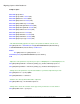
Synchronization Check List
1) The remote machine must be able to connect to the Enterprise SQL database on the network. You
can use the Manage Layers and Attach Database dialog box in XMap Professional to check for a
connection.
2) The remote user must have Database Create rights on their local SQL Server.
3) Add the remote user or a network group that user is a member of to the list of SQL users using the
DB Manager.
4) Add the remote user or a network group that user is a member of to the list of database users for the
database via the DB Manager.
5) Check off which layers you want to give to the remote users or group. Do not check the redline layer.
6) Create a subscription file and send it to the remote users.
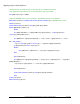
7) The remote user can either drag the subscription file onto the XMap window or just double click the
file. This will activate the Sync and Redline buttons in the toolbar.The remote user can get a copy of
the layers assigned to them by clicking the Sync button
.
About Subscriptions
A database subscription describes which database is used to look for a list of layers available for
synchronization. Read-only copies of these layers are created in each user’s local database when the
subscription is synchronized. A subscription is first enabled on a user’s computer by opening a
subscription file created by a Database Administrator in Database Manager. The layers that are included
in a subscription are dynamically configured in Database Manager and are not included in the
subscription file itself.
Enabling Subscriptions on Enterprise Database
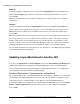
To enable a subscription on an Enterprise database, right-click the subscriptions item in the tree menu in
Database Manager and click Enable Subscriptions. The icon changes from red to green once
subscriptions are enabled.