
Guide


XMap 7 Network and Silent Installs
Contact DeLorme Professional Sales for support: 1-800-293-2389 Page 83
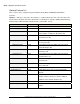
Required Feature List
Do not change these features or their components.
Feature Name Notes
XData Installs the XData tab.
Core Installs the application files.
PerUserData Configures registry for current user
Voice Installs speech files when needed. Not installed
on Vista or newer.
ThreeD_For_XP_And_Vista Calculates the cost for installing DirectX 9c for
Windows XP, Vista, and newer operating
systems.
SpeechEngine Installs speech files when needed. Not installed
on Vista or newer.
Create a Transform Using Orca
Orca is a component of the Microsoft Windows Software Developers Kit (SDK); you must install the SDK
to get Orca. You can download the SDK from:
Windows Server 2003 R2 Platform SDK Full Download
Installing the SDK places Orca.msi in the the \Program Files\Microsoft SDKs\Windows\v6.1\Bin directory.
Double click Orca.msi to complete the install of Orca.
For information on using Orca, see Microsoft Developer Network Orca.exe.
1) Open Orca.
2) Open the application MSI Database.
3) Select Transform from the menu bar.
4) Select New Transform from the drop down menu.
5) Scroll to and select the Property table.
6) Press CTRL + R to create a new record.
7) Type LICENSE_NUMBER and press ENTER.
8) Type the LICENSE_NUMBER value found on the DVD case and then press ENTER.
9) Set any installation paths or properties by creating new or modifying existing records in the Property
Table. See the Property List
for the paths and properties that can be changed.
10) Switch to the Feature table.
11) For any optional feature that is enabled by default and that you do not want to install, add it to the
DISABLE_FEATURES
list.
12) For any feature that is disabled by default and that you want to install, add it to the
INSTALL_FEATURES
list.