
Guide




Distributing a Patch using SMS
Contact DeLorme Professional Sales for support: 1-800-293-2389 Page 61
msiexec.exe /a “<path_to_original_msi>”
TARGETDIR=”<path_to_uncompressed_MSI>.
3) Make sure that the uncompressed directory is accessible by all users on the domain.
Extract MSP file
1) Run the update.exe to extract the .msp file. XMap does not need to be installed on the machine
where this runs. The msp file is extracted to the temp directory. You can find the temp directory by
typing in %temp% at the run prompt. The .msp file will be located in a new folder in this directory.
Depending on the size of the patch, this process may take a few minutes.
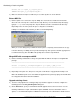
If XMap is not installed on the machine you will see the following dialog:
When you see this dialog then you will know that the patch is completely extracted and safe to copy
to another directory. For XMap, the msp is labeled xmap.msp. After you have finished copying the file
to a different directory, then click OK on the prompt above and the setup will abort.
Merge MSP with uncompressed MSI
2) Run the following command line to merge the patch MSP file with the uncompressed original MSI
package.
-------------------------------------------------------------------------------------------------------------------------
msiexec /a “<path_to_uncompressed_MSI>” /p “<path_to_MSP_file>”
-------------------------------------------------------------------------------------------------------------------------
3) Depending on the patch size, this process may take a few minutes. Copy updated uncompressed
MSI to all distribution point servers from which the application was previously deployed. This will allow
for a fully patched install for all new installations.
Upgrade existing clients
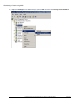
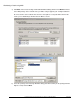
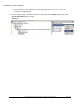
4) “Create a new program in the existing package to perform the upgrade. To do this, configure the
following options in the Program Properties dialog box:
5) On the General tab, specify a command line that will upgrade clients to the new version. Use the
following combination of repair command-line options: /fvomus. For more information on these
options, see "Command-line Options" in Windows Installer Help. The command line should reference