
Guide

Deploying XMap 7 Using SMS
Contact DeLorme Professional Sales for support: 1-800-293-2389 Page 51
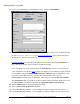
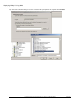
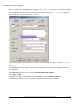
21) If you see ALLUSERS=2 in the Command line text box, change it to ALLUSERS=1.
22) In the Command line text box, add any properties that you want to change to the command line with
the syntax PROPERTY_NAME=value (see the How to Use Properties
section of this document for a
description of the properties that can be set).
LICENSE_NUMBER
is a required property and has to be included in either the Command line text
box, or in the property table of a transform that is applied to the MSI.
Please note that there is a 255-character limit to the Command line text box, so you may need to
create a transform as described in step 9
to apply your changes to the installation. To add a transform
to the installation, simply add TRANSFORMS=transform_name.mst to the Command line text box.
If you want to add multiple transforms, separate each transform with a semi-colon (e.g.,
TRANSFORMS=transform_name1.mst;transform_name2.mst). The transform has to be available
on a network share that is accessible to the client computers that the package is distributed to, and
the TRANSFORMS= statement should include the fully-qualified path to each transform.
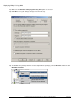
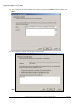
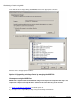
23) Click the Advanced tab on the Program Properties dialog.
24) Select the Run another program first check box.
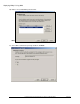
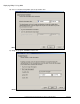
25) From the Package drop-down list, select the XMap Prerequisites package created in steps 3 to 7.
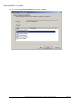
26) From the Program drop-down list, select the XMap Prerequisites program created in steps 6 and 7.