
Guide





Deploying XMap 7 Using SMS
Contact DeLorme Professional Sales for support: 1-800-293-2389 Page 47
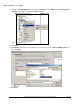
8) You can tell when the package has deployed by following by running the RunPrerequisites.vbs
included in the prerequisites installation using the following command line:
RunPrerequisites.vbs /installPath:\\server\prerequisites setup
directory\Setup.exe /computer:computerName [/no_sql_server]
computerName := The name of the client computer to test.
/no_sql_server := Provide this parameter if you installed using this parameter, otherwise don’t
include it.
If the %ERRORLEVEL% environment variable is 0, then the prerequisites are installed, if
%ERRORLEVEL% is not 0, then the prerequisites are not installed.
9) At this point, you have the option to create a transform to apply to the XMap installation later on in this
procedure. Transforms allow you to modify the installation package as it is running. SMS also has the
ability to modify the command line that is used to run the MSI if you don’t want to use a transform.
The command line is limited by 255 characters, so if you want to apply a lot of changes you will need
a transform. Note that the LICENSE_NUMBER
is a required property. If you create a transform, you
will need to set the LICENSE_NUMBER
in the property table to the license number that was assigned
to you. How to Use Properties
describes how to set properties in the property table and there are
more properties that you can set in the transform to customize your install that are described in the
Property List for XMap 7
. Once you have created the transform, set it aside; you will apply it to your
distribution package in a later step. The transform that you create in this step should be saved as an
*.mst file, and on a network share that is available to all the client computers to which you will install
the package.
NOTE: After working with various customers we have found that it is easier and causes less errors to
use Orca to generate transforms. This is a free tool and doesn’t add any extra properties that can
potentially break an installation. Many other third-party tools will run the installation to generate the
transform and record changes. Unfortunately, these changes end up being too specific for the
computer on which the tool is run and the settings will break installations on other computers. The
Create a Transform
section describes how to create a transform with Orca.
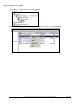
10) Create a shared folder with default permissions for the XMap installation files.