
Guide

Deploying XMap 7 Using Active Directory
Contact DeLorme Professional Sales for support: 1-800-293-2389 Page 22
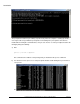
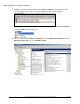
23) If the prerequisites are still running, then periodically repeat steps 22.a and b until the prerequisites
are finished. Then you can run the following command again as you did at the beginning of step 21 to
see if the prerequisites are fully installed. Remember to provide the /no_sql_server switch if you
used that to install the prerequisites, or do not provide it if you did not use it:
RunPrerequisites.vbs /installPath:<network path to Prerequisites
installer> /computer:<client computer name> [/no_sql_server]
Then check the ERRORLEVEL by executing the following command line:
echo %ERRORLEVEL%
If you see 1 printed in the command window, then you know that the prerequisites installer may still
be running or the install failed. If you see 0, then it has finished running and the prerequisites should
be installed.
Note: If you choose to install SQL Server Express on Windows XP and Vista versions older than SP2
that don’t have Windows Installer 4.5 installed, you will have to repeat steps 20 and 21 to force the
prerequisites to run again. Windows 7 and newer operating system do not require this. This is to
finish the installation of SQL Server. If you used the /no_sql_server option, then it is likely that
you will not have to repeat these steps again.
24) Once this process is complete for all the client computers you want to install XMap to, follow the
instructions in
Deploying XMap 7 Using Active Directory
Deploying XMap 7 Using Active Directory
Follow the steps below to install XMap 7 on a network using Active Directory.
1) Ensure that all prerequisites are installed prior to distributing package. See the Installation
Prerequisites section for more information.
2) Create a transform
and set the LICENSE_NUMBER in the property table to the license number that
was assigned to you. How To Use Properties
describes how to set properties in the property table
and there are more properties that you can set in the transform to customize your install that are
described in Property List for XMap
. Once you create the transform, set it aside; you will apply it to
your distribution package in a later step. The transform that you create in this step should be saved
as an *.mst file.
NOTE: We have found that it is easier and causes fewer errors to use Orca to generate transforms.
This is a free tool and doesn’t add any extra properties that can potentially break an installation. Many
other third-party tools will run the installation to generate the transform and record changes; however,
these changes end up being too specific for the computer on which the tool is run and the settings will