
Pilot's Guide





190-00663-03 Rev. A
Garmin G1000 Pilot’s Guide for the Beechcraft C90A/GT/GTi
51
SYSTEM OVERVIEW
4) Use the FMS Knob to enter the message text to be displayed in the Alerts Window and press the
ENT
Key.
5) Press the ENT Key again or use the large FMS Knob to move the cursor to the field next to ‘Type’.
6) Turn the small FMS Knob to select set the message alert type:
• Event—Message issued at the specified date/time
• One-time—Message issued when the message timer reaches zero (default setting)
• Periodic—Message issued each time the message timer reaches zero
7) Press the ENT Key again or use the large FMS Knob to move the cursor to the next field.
8) For periodic and one-time message, use the FMS Knob to enter the timer value (HHH:MM:SS) from which to
countdown and press the ENT Key.
9) For event-based messages:
a) Use the FMS Knob to enter the desired date (DD-MMM-YYY) and press the ENT Key.
b) Press the ENT Key again or use the large FMS Knob to move the cursor to the next field.
c) Use the FMS Knob to enter the desired time (HH:MM) and press the ENT Key.
10) Press the ENT Key again or use the large FMS Knob to move the cursor to enter the next message.
Deleting a scheduler message:
1) Select the AUX - Utility Page.
2) Press the FMS Knob momentarily to activate the flashing cursor.
3) Turn the large FMS Knob to highlight the name field of the scheduler message to be deleted.
4) Press the CLR Key to clear the message text. If the CLR Key is pressed again, the message is restored.
5) Press the ENT Key to confirm message deletion.
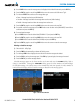
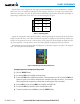
Scheduler messages appear in the Alerts Window on the PFD and cause the ALERTS Softkey label to
change to ‘ADVISORY’. Pressing the ADVISORY Softkey opens the Alerts Window and acknowledges
the scheduler message. The softkey reverts to the ‘ALERTS’ label and when pressed, the Alerts Window is
removed from the display and the scheduler message is deleted from the message queue.
Figure 1-45 PFD Alerts Window