
Pilot's Guide




Garmin G1000 Pilot’s Guide for the Beechcraft C90A/GT/GTi
190-00663-03 Rev. A394
HAZARD AVOIDANCE
OPERATION
The unit must be in operating mode for traffic to be displayed. The ability to switch from standby to operating
mode on the ground is especially useful for scanning the airspace around the airport before takeoff.
Switching from standby mode to operating mode:
1) On the Traffic Page, select the
OPERATE
Softkey or press the MENU Key and turn the small
FMS
knob
to select
Operating Mode.
2) If using the FMS menu, press the ENT Key to place the TAS in the operating mode.
3) To switch to Standby Mode from the Traffic Page, select the STANDBY Softkey.
System Test:
1) Set the range to 2/6 nm to allow for full test pattern display.
2) Select the STANDBY Softkey.
3) Select the TEST Softkey. ‘TEST MODE’ is annunciated on the MFD.
4) Self test takes approximately eight seconds to complete. When completed successfully, traffic symbols display
and a voice alert is heard to indicate the system test passed.
DISPLAYING TRAFFIC DATA
Traffic information can be displayed on the following maps when the unit is operating:
• PFD Inset Map
• Navigation Map Page
• Traffic Map Page
• Trip Planning Page
• Active Flight Plan Page
• Nearest Pages
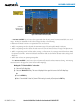
Traffic information can also be displayed on the PFDs when the Synthetic Vision Technology (SVT) option is
installed and enabled. See the Additional Features Section for details.
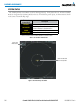
Displaying traffic on the Traffic Map Page:
1) Turn the large
FMS
Knob to select the Map Page Group.
2) Turn the small
FMS
Knob
to select the Traffic Map Page.
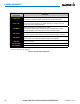
3) Select the OPERATE Softkey to begin displaying traffic. OPERATING is displayed in the Traffic mode field.
4) Select the ALT MODE Softkey to change the altitude volume.
5) Select the STANDBY Softkey to place the system in the Standby mode. STANDBY is displayed in the Traffic
mode field.
6) Turn the Joystick clockwise to display a larger area or counter-clockwise to display a smaller area.