
Pilot's Guide




190-00663-03 Rev. A
Garmin G1000 Pilot’s Guide for the Beechcraft C90A/GT/GTi
381
HAZARD AVOIDANCE
Enabling/Disabling Profile View Terrain on the Navigation Map (when Profile View is enabled):
1) Select the Navigation Map Page.
2) Select the MAP Softkey.
3) Select the TERRAIN Softkey.
PROFILE VIEW DISPLAY
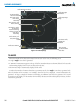
When the Profile View is enabled, it is displayed in a window below the Navigation Map. Altitude is shown
along a vertical scale, with an aircraft icon positioned at the current altitude. Distance is represented horizontally
along the bottom of the Profile View Window, and increases from left (present position) to right.
When the Navigation Map range is adjusted with the Joystick, the horizontal distance of the Profile View
is adjusted proportionately to be 1/2 of the Navigation Map range distance down to 1 nm, at which point
Profile View is no longer available (‘PROFILE NOT AVAILABLE’ is displayed). When Navigation Map range is
adjusted to remove altitude-correlated colored terrain data (as shown in the Terrain Legend) or obstacles from
the Navigation Map, these items are also removed from the Profile View; only an outline of the terrain will be
displayed in black in the Profile View window. Refer to the TAWS-B discussion for more information about
displaying terrain or obstacles on the Navigation Map Page.
Terrain Legend
Profile View Length
is One Half of the
Navigation Map
Range
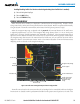
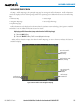
Figure 6-96 Profile View on Navigation Map with Terrain Display Enabled
Altitude Scale
Distance Scale
Terrain Enabled Icons
Navigation Map Range
Profile Path
Range
Markers
The Profile View is based on the current aircraft track (or heading if track is unavailable) and shows the highest
known terrain or obstacles within a predetermined width from the present aircraft position to the end of the