
Pilot's Guide



Garmin G1000 Pilot’s Guide for the Beechcraft C90A/GT/GTi
190-00663-03 Rev. A244
FLIGHT MANAGEMENT
Activating a vertical navigation direct-to:
1) Press the FPL Key to display the Active Flight Plan Page on the MFD.
2) Press the FMS Knob to activate the cursor and turn the FMS Knob to highlight the desired waypoint.
NOTE: The selected waypoint must have a designated altitude constraint (cyan number) to be used. If not,
the first waypoint in the flight plan with a designated altitude constraint is selected.
3) Select the VNV Direct-To Softkey; or press the MENU Key, highlight ‘VNV Direct-To’, and press the ENT Key.
An ‘Activate vertical Direct-to to: NNNNNFT at XXXXXX?’ confirmation window is displayed.
4) Press the ENT Key. Vertical guidance begins to the altitude constraint for the selected waypoint.
5) Press the FMS Knob to remove the flashing cursor.
The vertical navigation profile can be modified by directly entering a vertical speed target (VS TGT) and/or flight
path angle (FPA) in the CURRENT VNV PROFILE box.
Modifying the VS TGT and FPA:
1) Press the FPL Key to display the Active Flight Plan Page on the MFD.
2) Select the VNV PROF Softkey; or press the MENU Key, highlight ‘Select VNV Profile Window’, and press the
ENT Key. The cursor is now located in the CURRENT VNV PROFILE box.
3) Turn the FMS Knobs as needed to edit the values.
4) Press the FMS Knob to remove the flashing cursor.
ALTITUDE CONSTRAINTS
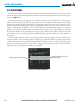
The G1000 system can use altitude constraints associated with lateral waypoints to give guidance for vertical
navigation. These altitudes are, depending on the specific instance, manually entered or retrieved from the
published altitudes in the navigation database.
Large Cyan Text
Small White Text with
Altitude Restriction Bar
Large White Text
Small Cyan Subdued
Text
Small Cyan Text
Figure 5-91 Waypoint Altitude Constraints
Cross AT
or ABOVE
5,000 ft
Cross AT
or BELOW
3,000 ft
Cross AT
2,300 ft
Altitude Constraint
Examples
Displayed Text
Examples