
Pilot's Guide




190-00663-03 Rev. A
Garmin G1000 Pilot’s Guide for the Beechcraft C90A/GT/GTi
120
AUDIO PANEL AND CNS
AUTO-TUNING A NAV FREQUENCY FROM THE MFD
Select and load NAV frequencies from the following MFD pages:
• WPT – Airport Information
• WPT – VOR Information
• NRST – Nearest Airports
• NRST – Nearest VOR
• NRST – Nearest Frequencies (FSS, WX)
• NRST – Nearest Airspaces
The MFD provides auto-tuning of NAV frequencies from waypoint and nearest pages. During enroute
navigation, the NAV frequency is entered automatically into the NAV standby frequency field. During approach
activation the NAV frequency is entered automatically into the NAV active frequency field.
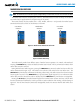
Load frequencies into the NAV Frequency Box from pages in the NRST or WPT page group by highlighting
the frequency and pressing the
ENT
Key (Figures 4-23, 4-24, and 4-25).
Auto-tuning a NAV frequency from the WPT and NRST Pages:
1) From any page that the NAV frequency can be auto-tuned, activate the cursor by pressing the FMS Knob or the
appropriate softkey.
2) Turn the FMS Knob to place the cursor on the desired NAV identifier or NAV frequency.
3) On the Nearest VOR and Nearest Airports pages, press the FREQ Softkey to place the cursor on the NAV
frequency (Figure 4-25).
4) Press the ENT Key to load the NAV frequency into the standby field of the selected NAV radio.
5) Press the Frequency Transfer Key to transfer the frequency to the NAV Active Frequency Field.
Press the
ENT
Key to Load a
Highlighted Frequency into the
NAV Standby Frequency Box.
Turn the
FMS
Knob to Scroll
Through a List
of Frequencies.
Figure 4-23 NAV Frequency Auto-Tuning from the MFD