
Owner's Manual


Table Of Contents
- GXM 30 Owner's Manual
- Introduction
- Getting Started
- XM WX Weather Features
- Displaying Weather Information
- NEXRAD Radar
- Satellite Mosaic
- Lightning
- Storm Cells
- Hurricanes
- Surface Winds
- Winds Aloft
- Surface Pressure
- Fronts
- Visibility
- County Warnings
- Water Temperature
- Wave Period
- Wave Direction
- Wave Height
- Marine Warnings
- Buoy Reports
- METAR
- AIRMET
- SIGMET
- TFR
- Echo Tops
- Freezing Level
- Forecast
- TAF
- XM Radio
- Appendix
GXM 30 XM Radio Smart Antenna Owner’s Manual 4
Step 5: Confirm all Components of your Service
Package
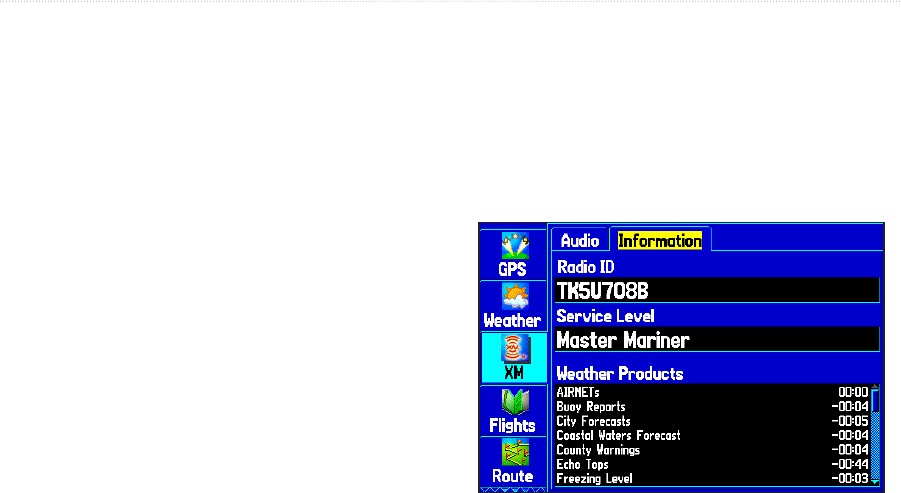
XM WX Weather: Keep your Garmin unit turned on to
ensure you receive the XM signal. The XM signal is being
received when the components of the selected service
package are displayed in the Weather Products list on the
Information sub tab. Do not turn off the Garmin unit until the
name of the selected service package is displayed in the
Service Level field (see Step 6).
XM Radio: Highlight the Audio sub tab and verify that
channels 7, 9, 47, and 122 are being received. This
indicates that all channels on XM’s basic radio service
are being received. If within an hour the XM WX Weather
and/or the XM Radio service has not activated, call XM WX
customer care at 800-985-9200 to validate the activation
of XM services. The customer care representative can
refresh the activation signal or you can do this yourself a
www.xmradio.com/refresh by entering your radio ID where
requested.
Step 6: Save the Service Package
After the service package name appears in the Service
Level field, turn off the Garmin unit.
Step 7: Add Features to your Unit
When you turn on the GXM 30 after completing Step 6, you
are ready to add weather features to the unit’s Map Page
and set your new favorite channels.
XM Information
GETTING STARTED > SUBSCRIBING TO XM SERVICE