
User Guide




190-00592-01 Rev. A
Garmin G1000 Pilot’s Guide for the Diamond DA40/40F
6-29
HAZARD AVOIDANCE
Obstacles are displayed only at certain map zoom ranges, on certain maps, and will only be displayed if an
obstacle database is loaded on the SD card. In addition, all map zoom ranges are dependent on the zoom range
setting in the Navigation Map. If the zoom range on the Navigation Map is adjusted to below 20 nm, the highest
zoom range on all other maps is adjusted proportionally.
Table 6-4 shows the map pages and the highest zoom range at which obstacles are displayed.
MAP Range (nm)
Navigation Map Page 50
Inset Map 10
Terrain Proximity Page
10
AUX - Trip Planning Page 10
Active Flight Plan Pages 15
Table 6-4 Zoom Ranges for Displaying Obstacle Data
LIMITATIONS
Terrain Proximity displays altitudes of terrain and obstructions relative to the aircraft position and altitude
with reference to a database, which may contain inaccuracies. Terrain and obstructions are shown only if
available in the database. Terrain and obstacle information should be used as an aid to situational awareness,
and not to navigate or maneuver around terrain.
• Not all obstructions may be available in the terrain and obstacle database
• No terrain and obstacle information is shown without a 3D GPS position
TERRAIN PROXIMITY PAGE
NOTE: The Terrain Proximity Page shows ONLY caution and warning obstacles within a 10 nm range of the
aircraft.
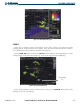
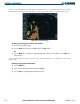
The Terrain Proximity Page is in the MAP group of pages and displays the following:
• Current aircraft location
• Range marking rings (25 nm, 25/50 nm, 50/100 nm, and 100/200 nm)
• Heading Box (North Up, Track Up, DTK Up, HDG Up). Heading on the Terrain Proximity Page displays
‘HDG Up’ map data unless there is no valid heading
• Terrain
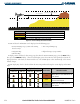
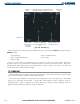
• Terrain Range - Indicates the terrain elevation in colors relative to the aircraft altitude (Figure 6-40)
Displaying terrain and obstacles on the Terrain Proximity Page:
1) Turn the large
FMS
Knob to select the Map Page Group.
2) Turn the small
FMS
Knob
to select the last rectangular page icon.
3) Turn the Joystick clockwise to display a larger area or turn counter-clockwise to display a smaller area.