
User Guide



190-00592-01 Rev. A
Garmin G1000 Pilot’s Guide for the Diamond DA40/40F
6-7
HAZARD AVOIDANCE
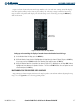
Figure 6-5 shows the Weather Data Link Setup Window. The ‘ON’ and ‘OFF’ settings control the display
of weather product softkeys in the same way that softkeys do. The range settings control the largest map
range at which each product will display. The default settings can be restored by pressing the MENU Key
while in the menu.
Figure 6-5 Weather Data Link Setup Window
Winds Aloft
Data Selected
Setting up and customizing the display of weather data on the Weather Data Link Page:
1) On the Weather Data Link Page, press the
MENU
Key.
2) While the Weather Setup selection is highlighted on the Page Menu (as shown in Figure 6-4), press the
ENT
Key.
If necessary, turn the small
FMS
Knob to select ‘Weather Setup’ and then press the
ENT
Key.
3) While the Weather Data Link Setup Menu (as shown in Figure 6-5) is displayed, turn the large
FMS
Knob to
highlight and move between the product selections. Turn the small
FMS
Knob to select an option for each
selection and press the
ENT
Key.
MAP PANNING ON THE WEATHER DATA LINK PAGE
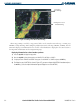
Map panning (as shown in Figure 6-6) moves the map beyond its current limits without adjusting the map
range. Press the
Joystick
to select the map panning feature.