
User Guide




190-00552-00 Rev. A
Garmin G1000 Pilot’s Guide for the Columbia 350/400
1-21
SYSTEM OVERVIEW
1.7 ACCESSING G1000 FUNCTIONALITY
MENUS
The G1000 has a dedicated MENU Key that when pressed displays a context-sensitive list of options. This
options list allows the user to access additional features or make settings changes which specifically relate to
the currently displayed window/page. There is no all-encompassing menu. Some menus provide access to
additional submenus that are used to view, edit, select, and review options. Menus display ‘NO OPTIONS’
when there are no options for the window/page selected. The main controls used in association with all
window/page group operations are described in Section 1.6, G1000 Controls. Softkey presses do not display
menus or submenus.
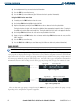
Navigating a menu:
1) Press the MENU Key to display the menu.
2) Turn the FMS Knob to scroll through a list of available options (a scroll bar always appears to the right of the
window/box when the option list is longer than the window/box).
3) Press the ENT Key to select the desired option.
4) Press the CLR Key or FMS Knob to remove the menu and cancel the operation.
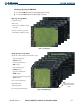
Figure 1-20 Page Menu Examples
No Options for
NRST Window
Options for FPL Window
DATA ENTRY
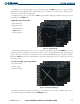
Two methods exist for directly entering alphanumeric data (e.g., Flight ID, waypoint identifiers, barometric
minimum descent altitude) into the G1000: using the using the alphanumeric keypad (on the MFD/PFD Control
Unit) or the FMS Knob corresponding to the display (PFD, MFD, or MFD/PFD Control Unit).
In some instances, such as when entering an identifier, the G1000 will try to predict the desired identifier
based on the characters being entered. In this case, if the desired identifier appears, use the
ENT Key to confirm
the entry without entering the rest of the identifier manually. This can save the pilot from entering all the
characters of the identifier.
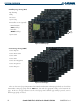
Using the MFD/PFD Control Unit keypad to enter data:
1) Choose the desired display control mode by pressing the PFD or MFD Key on the MFD/PFD Control Unit.
2) If needed, press the FMS Knob to activate the cursor.
3) Use the large FMS Knob to highlight the desired field.