
User Guide



Garmin G1000 Pilot’s Guide for the Columbia 350/400
190-00552-00 Rev. A4-26
AUDIO PANEL AND CNS
AUTO-TUNING ON THE PFD
COM frequencies for the nearest airports may be viewed and automatically loaded from the Nearest Airports
Window on the PFD. When the desired frequency is entered, it becomes a standby frequency. Pressing the
Frequency Transfer
Key places this frequency into the active field.
Auto-tuning a COM frequency for a nearby airport:
1) Select the
NRST
Softkey to open the Nearest Airports Window, which displays the list of airport identifiers and
COM frequencies.
2) Turn either
FMS
Knob to highlight the desired COM frequency.
3) Press the
ENT
Key to load the COM frequency into the Standby COM Tuning Field.
4) Press the Frequency Transfer Key to transfer the COM frequency between the standby and active frequency
fields.
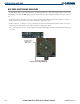
Figure 4-31 Nearest Airports Window (PFD)
Selecting the
NRST
Softkey opens
the Nearest Airports Window
AUTO-TUNING ON THE MFD
Frequencies can be selected and loaded from the following MFD pages:
• WPT – Airport Information
• WPT – VOR Information
• NRST – Nearest Airports
• NRST – Nearest VOR
• NRST – Nearest (ARTCC, FSS, WX) Frequencies
Selecting a page in the WPT or NRST lists:
1) Turn the
large FMS
Knob until the desired page group is selected.
2)
Turn
the
small FMS
Knob until the desired page is selected.
In NAV Mode during any VOR/ILS approach activation, the NAV frequency is automatically loaded into the
standby field of the selected NAV radio.
In GPS Mode during any VOR/ILS approach activation, the appropriate NAV frequency is automatically
loaded into the active field of NAV1.