
User Guide




GPS NAVIGATION
5-54 190-00494-00 Rev. B
Garmin G1000 Pilot’s Guide for the Cessna Citation Mustang
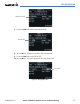
Displaying information for each additional runway:
1) Press the FMS Knob to activate the cursor.
2) Place the cursor on the runway designation field.
3) Turn the small FMS Knob to display the next runways for the selected airport.
4) Select the desired runway.
5) Press the FMS Knob to remove the flashing cursor.
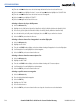
6) Turn the JOYSTICK counterclockwise to select a lower range and rotate it clockwise to select a higher range.
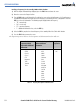
The following descriptions and abbreviations are used on the airport runway information box:
• Type – Usage type: Public, Military, or Private
• Surface – Runway surface types include: Hard, Turf, Sealed, Gravel, Dirt, Soft, Unknown, or Water
• Lighting – Runway lighting types include: No Lights, Part Time, Full Time, Unknown, or Frequency (for
pilot-controlled lighting)
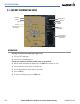
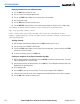
Selecting a Runway:
1) With the Airport Information Page displayed, press the
FMS
Knob
to activate the cursor.
2) Place the cursor on the ‘RUNWAYS’ identifier field.
3) Turn the small
FMS
Knob to display the next runway for the selected airport. Continue turning the small
FMS
Knob to select the desired runway.
4) To remove the flashing cursor, press the
FMS
Knob
.
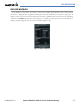
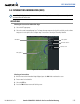
Creating user waypoints via the Airport Information Page Map:
1) With the Airport Information Page displayed, push the
JOYSTICK
to activate the panning function. The target
pointer is displayed at the center of the map.
2) After placing the pointer at the desired position, select the
ENT
Key. The User Waypoint Information Page is now
displayed with the captured position.
3) Enter a waypoint name.
4) Select the
ENT
Key to accept the selected name. The first reference waypoint field is highlighted.
5) If desired, enter the identifier of the reference waypoint and the radial and distance to the reference waypoint.
6) Press the
FMS
Knob to remove the flashing cursor.