
Operator's Manual





3. HOW TO MANAGE CHARTS
3-12
Note 2: Synchronization is not done for charts which could not be installed success-
fully. Reinstall failed charts.
How to install C-MAP licenses
A C-MAP license file is normally installed automatically. Manual installation is also
available.
Automatic installation:
1. Set the medium (DVD, USB flash memory, etc.) that contains the C-MAP license.
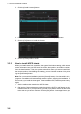
2. Get into the Chart maintenance mode then click the [License] button on the
InstantAccess bar.
3. Click the [Install Licenses] button.
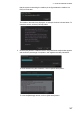
4. Select the medium that contains the license then click the [Open] button.
5. Click the [OK] button to install the license.
6. Click the [Close] button to finish.
Manual installation:
1. Click the [CHARTS] button on the Status bar to go the Chart maintenance mode,
then click the [License] button on the InstantAccess bar.
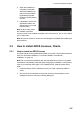
2. Click the [Input Manually] button to
show the [Input License Manually]
box.
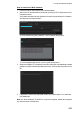
3. Select the type [C-MAP] at the bot-
tom of the window.
4. Enter the [Database name] and
[Collection name] information as
shown in the
table below. Enter the names exactly as shown to ensure correct installation.
5. Enter the license (max. 16 characters) in the bottommost window.
6. Click the [OK] button to finish.
Database name Collection name
Chart type
Professional:
Professional+:
CM-ENC:
JeppesenPRIMAR:
Name to enter
World
Professional+
ENC
JeppesenPRIMAR
Enter the contracted zone number according to chart
type as follows:
Professional/Professional+: Enter “Zone *” (with-
out quotations)
Ex. Zone 0
CM-ENC/JeppesenPRIMAR: Enter “Zone * ENC”
(without quotations)
Ex. Zone 0 ENC
*=Zone no.