
Operator's Manual





3. HOW TO MANAGE CHARTS
3-6
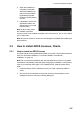
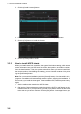
3. Click the [Install Licenses] button.
4. Find the medium that contains the license then click the [Open] button.
5. Click the [OK] button to install the license.
6. Click the [Close] button to finish.
3.3.2 How to install ARCS charts
When you install charts from a medium, the system first loads a catalog, which stores
certain information into your SSD such as cell IDs, their position, and edition number,
from the install medium. Then, the system asks which charts you want to install from
the chosen medium. After building the catalog, you can view the contents of it by click-
ing the [Cell Status] button.
Note: Do not cancel the installation (with the [Cancel] button) of a chart while it is in
progress. Cancellation will automatically reset the power, stopping the installation. If
this occurs, try to install the chart again. If the installation fails, reset the power and try
again.
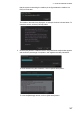
1. Set the medium that contains the ARCS charts.
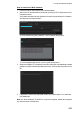
2. Get into the Chart maintenance mode then click the [AUTO Load] button on the
InstantAccess bar. A prompt informs you that it may take a while to do the instal-
lation and are you sure to continue. Click the [OK] button. A message informs you
ARCS License
Delete Licenses
Export List
4937 31 Mar 2015 N
3249 31 Mar 2015 N
4937 31 Mar 2015 N
1473 31 Mar 2015 N
2376 31 Mar 2015 N
4173 31 Mar 2015 N