
Operator's Manual





3. HOW TO MANAGE CHARTS
3-5
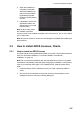
4. When the installation is
completed, information
about the installation ap-
pears in the [Error/Warn-
ing/Guidance] window.
Click the [Confirm] button
to finish.
5. If applicable, set the next
sequential medium and
repeat steps 2-4 to install
the next charts.
Note 1: When many charts
are installed, the ECDIS
checks for error in the installed chart data at the next power up. This is not an indica-
tion of malfunction.
Note 2: Previous versions of charts cannot be displayed if installed after installing the
latest versions.
3.3 How to Install ARCS Licenses, Charts
3.3.1 How to install an ARCS license
An ARCS license can be installed automatically or manually. The procedure which fol-
lows is for automatic installation. For manual installation, see "Manual
installation" on page 3-3.
Note: Do not cancel the installation (with the [Cancel] button) while it is in progress.
Cancellation automatically resets the power, stopping the installation. If the power is
reset, try to install the charts again. If the installation fails, reset the power and try
again.
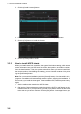
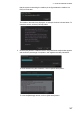
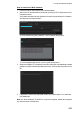
1. Insert the medium (DVD, USB flash memory, etc.) that contains the ARCS li-
cense.
2. Get into the Chart maintenance mode then click the [License] button on the
InstantAccess bar to show the [Licenses] dialog box.
100%