
Operator's Manual


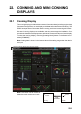
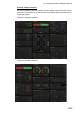


22. CONNING AND MINI CONNING DISPLAYS
22-2
monitor and vice versa if the sub monitor is configured to show the Conning display.
Push the scrollwheel until the cursor moves to the other monitor.
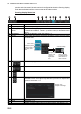
Conning display Status bar
No. Button Description
1 Operating mode Selects the operating mode, ECDIS or CONNING.
2 Conning display
sheet
Selects the conning display sheet to use, Sheet.1 - Sheet.6. (Sheet name
is decided at installation. “Sheet x” (x=sheet number) is the default sheet
name.)
3 STANDBY Goes to the Standby mode. See section 1.4.
4 TOOL Shows, hides the software keyboard; adjusts the volume of the key beep
and audio alert.
5 Selects a display palette. See section 1.7.
6 Adjusts the brilliance of a FURUNO or Hatteland monitor. See section 1.8.
7 Takes a screenshot. See section 1.14.
8 Displays AMS and conning software version and system information. The
information shown in the figure may differ from your own. For System and
System 2 see section 1.17.
9 Date See section 1.13.
10 Time See section 1.13.
11 Rotates clockwise if the system is working properly. See section 2.1.2.
To adjust a
volume, put
cursor in
applicable
box.
Click up arrow
to raise volume;
down arrow to
lower volume.
Volume setting
Shows, hides
software keyboard
Adjusts volume of
key beep, audio
alert
Version nos.
subject to change.