
Operator's Manual

10. USER CHARTS
10-3
ject, you can set Orientation, Strength and Time from the dialog box. With the "La-
bel" object you can enter text and show that text on the screen.
Note: An object can also be put at the center of the screen. Do step 1-4 in this
procedure. On the [User Chart] dialog box, right click the box to the left of [Object]
then select [Add Object] from the pop-up menu.
6. When you insert an object, the following is done in the [User Chart] dialog box:
- Name of the object button appears in the [Object] window
- Latitude and longitude position of the object is displayed
- Total object count is updated
7. To enter a name for the object, click the appropriate location in the [Name] window
then use the software keyboard or the Control Unit to enter a name.
8. To show the object on the radar overlay, click the corresponding box in the [Radar]
window to show a checkmark in the box.
For the label, line, clearing line, area and circle, click the corresponding box in
the [Danger] window to use or don't use the object in chart alert calculation. Show
a red checkmark to use the object in chart alert calculation.
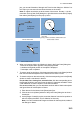
For an area, circle, line, you can add Notes as shown below. See the description
and figure below for a description of Notes.
1) Enter the text for the Notes in the [Description] box.
2) Click the box in the [Notes] window of the [User Chart] dialog box to show a
checkmark.
3) At the [Range of notes] input box, enter the distance from the line position at
which to display the Notes. This is effective for lines only.
Note: You cannot select both Danger and Notes for these symbols; select ei-
ther Danger or Notes.
(3) Click
(2) Click
(1) Click
(4) Right-click;
select Finish.
How to create a line
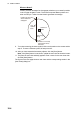
1) Put cursor where to locate center of circle
then click.
2) Drag cursor to set radius; double-click to set.
How to create a circle
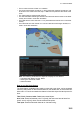
(1) Click
(2) Click
(3) Click
How to create an area
(4) Right-click;
select Finish.
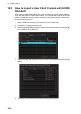
(2) Drag cursor;
double-click
to set.
(1) Click