
Operator's Manual




9. ROUTES
9-19
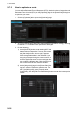
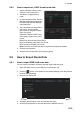
9.8.3 How to import csv, ASCII format route data
1. Set the USB flash memory to the
USB port on the Control Unit.
2. Activate the Voyage planning
mode.
3. On the InstantAccess bar, click the
[Manage Data] and [Route] buttons
to show the [Route Data Manage-
ment] dialog box.
4. At the drop-down list, select the im-
port format. The choices are
[CSV Position]: waypoint position
data, CSV format
[ASCII WPT Name Position]: way-
point name, position order, ASCII
format
[ASCII Full]: all route data, ASCII format
[CSV Route Sheet]: route data, CSV format
[RTE Format]: route data, RTE format
Note: FEA-2x07 route data can also be imported through this procedure.
5. Click the [Import] button.
6. Select the file to import then click the [Open] button.
9.9 How to Export Route Data
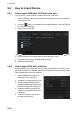
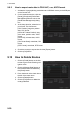
9.9.1 How to export FMD-3xx0 route data
You can export route data to share the data with other FMD-3xx0 units.
1. Set a USB flash memory in the USB port on the Control Unit.
2. Click the [ ] button on the Status bar and select [Settings]. Click the [OK] but-
ton then select [Settings].
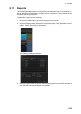
3. Click the [File Export] tab.
4. At [Select data to export], check only [Route/User chart].
5. Click the [Export] button to save the data to the USB flash memory.
Route Data Management
Playback data