
Operator's Manual

9. ROUTES
9-7
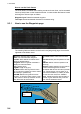
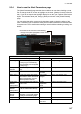
9.3.4 How to use the Alert Parameters page
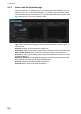
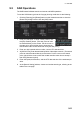
The [Alert Parameters] page sets the alert conditions to use when checking a route.
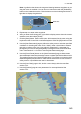
Put an orange circle for an item to highlight on the chart. ([Safety Contour] is fixed to
red.) If you do not require the highlight display for an item, put a yellow circle for that
object. The relevant alerts (red, orange, yellow) are shown in the [Check Results]
page.
You can select the safety contour and chart alerts used to check the safety of the
route. This allows you to check the safety with conditions different from those chosen
for system use. This is useful when making a route for different loading or sailing con-
ditions.
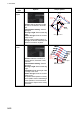
Radio buttons, input boxes Alert items
Item Description Item Description
Check type Check how to apply the alerts,
to every leg or individual leg.
(Only [Draught] can be applied
to every leg.)
Draught/m Ship’s draught
Safety
Contour
Set the safety contour (in me-
ters).
Safety Contour Safety contour
UKC Limit Under keel clearance limit. Areas to be
Avoided
Areas to be avoided
Date (UTC) A chart may have date-depen-
dent features. Enter the actual
data of embarkation to know
date-dependent features.
User Chart
Danger
User chart danger area
[Copy from
Default
Alert] button
Copy the default alert settings
to this route.
Traffic
Separation
Zone
Traffic separation zone
[Copy to
Default
Alert] button
Copy the alert settings for this
route as default alert settings.
Inshore Traffic
Zone
Inshore traffic zone
[Check
Route]
button
Click to check route for safe
navigation. The results appear
on the [Check Results] page.
Restricted Area Restricted area
Leg Leg number Caution Area Caution area
Offshore Produc-
tion Area
Offshore production area
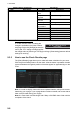
Click each box to show one of the following:
- Orange circle (Item highlighted in red on chart)
- Yellow circle (No highlight)
Route Bank