SYSTECH SYT-106 D IGITAL THESAURUS User’s Guide Retain for22 future reference
License Agreement READ THIS LICENSE AGREEMENT BEFORE USING THE PRODUCT. YOUR USE OF THE PRODUCT DEEMS THAT YOU ACCEPT THE TERMS OF THIS LICENSE. IF YOU DO NOT AGREE WITH THESE TERMS, YOU MAY RETURN THIS PACKAGE WITH PURCHASE RECEIPT TO THE DEALER FROM WHICH YOU PURCHASED THE PRODUCT AND YOUR PURCHASE PRICE WILL BE REFUNDED. PRODUCT means the software product and documentation found in this package and FRANKLIN means Franklin Electronic Publishers, Inc.
Key Guide BACK CLEAR CONF ENTER GAMES HELP NEXT ON/OFF PREV ? ✽ Goes back or erases a typed letter. Clears to the Ready screen or stops the Quick Demo. Gives the Confusables™ of a word. Enters a word or scrolls to the right. Shows the Games menu. Shows a help message. Shows the next entry or word. Turns the product on or off. Shows the previous entry or word. Types a ? to stand for any letter. In games, ends a round and shows the thesaurus entries. Types an ✽ to stand for any series of letters.
Getting Started 1. Press ON/OFF. The Quick Demo appears. You can stop the demo at any time by pressing CLEAR . or to adjust the contrast at 2. Press the Ready screen. You can only adjust the contrast here. 3. If the screen is still blank, you may need to change the battery. See “Product Information” to learn how. ✓ Resuming Where You Left Off To save battery life, this product will automatically shut off within two minutes.
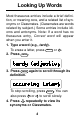
Looking Up Words Most thesaurus entries include a brief definition, or meaning core, and a related list of synonyms or Classmates. (Classmates are words related by subject.) Some entries include idioms and antonyms. Note: If a word has no thesaurus entry, Correct word will appear when you enter it. 1. Type a word (e.g., tardy). To erase a letter, press BACK or . 2. Press ENTER . 3. Press ENTER again to scroll through its definition. To stop scrolling, press BACK . You can or to scroll slowly.
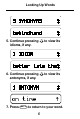
Looking Up Words 5. Continue pressing idioms, if any. to view its 6. Continue pressing antonyms, if any. to view its 7. Press BACK to return to your word.
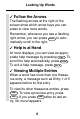
Looking Up Words ✓ Follow the Arrows The flashing arrows at the right of the screen show which arrow keys you can press to view more words. Remember, whenever you see a flashing right arrow, you can press ENTER to automatically scroll to the right. ✓ Help is at Hand At most displays, you can view an appropriate help message by pressing HELP . To scroll the help automatically, press ENTER . To exit a help message, press BACK .
Viewing Confusables™ Confusables are commonly confused words such as homonyms and spelling variants. When a C flashes to the right of a word in a thesaurus entry, that word has Confusables. Try this example. 1. Type reign. 2. Press ENTER . Notice the flashing C at the right of the screen. 3. Press 4. Press CONF . to view more Confusables.
Correcting Misspellings Whenever you enter a misspelled word, a list of corrections and similar words appear. Note: If you enter a correctly spelled word that does not have a thesaurus entry, Correct word appears. Try this example. 1. Type a misspelled word. 2. Press ENTER . 3. Press to view similar words. Note: A flashing T after a word shows that it has at least one thesaurus entry. To view its entry, press ENTER . 4. Press CLEAR when finished.
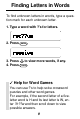
Finding Letters in Words To find unknown letters in words, type a question mark for each unknown letter. 1. Type a word with ?’s for letters. 2. Press 3. Press 4. Press ENTER . to view more words, if any. . CLEAR ✓ Help for Word Games You can use ?’s to help solve crossword puzzles and other word games. For example, if the second letter of a fiveletter word is H and its last letter is W, enter ?h??w and then scroll down to view possible answers.
Finding Parts of Words To find prefixes, suffixes, or fragments of a word, type one or more ✻’s in the word. Each ✻ stands for any series of letters. 1. Type a word fragment beginning or ending with an ✻. 2. Press 3. Press 4. Press ENTER . to view more words. . CLEAR ✓ Letter Finding Tips You can type both ?’s and ✻’s in a word. However, if you type either at the start of the word, finding words may take a while. Note: It is not necessary to type two ✽’s in a row.
Selecting Games Before you can play a game, you need to know how to select it and how to pick a skill level. There are five skill levels: Beginner, Intermediate, Advanced, Expert, and Wizard. The harder the skill level you choose, the longer the word or shorter the time you have to win. Follow these instructions before playing. 1. Press GAMES . 2. Press or until the game you want to play is in view. 3. Press ENTER . or until the skill level you 4. Press want is in view. 5. Press ENTER .
Hangman Hangman challenges you to guess the letters of a mystery word in a limited number of tries. 1. Select Hangman. 2. Select a skill level. mystery word tries left 3. Type letters. 4. Press 5. Press 6. Press to reveal a letter. to reveal the word. ENTER to play a new round.
Anagrams In Anagrams, you try to enter all the anagrams of a word. An anagram is a word formed from some or all of the letters of another word. 1. Select Anagrams. 2. Select a skill level. word anagrams left 3. Type an anagram, then press ENTER . If the anagram is correct, OK appears. 4. Enter more anagrams. 5. Press 6. Press to review used anagrams. to jumble letters. ENTER to view 7. Press ? and then all the anagrams. 8. Press ENTER to play a new round.
Jumble In Jumble, a jumbled word appears and you must unscramble the letters to spell a word or words. Note: Some jumbles are formed from more than one word. 1. Select Jumble. 2. Select a skill level. jumble number of words 3. Type a word, then press ENTER . 4. Press ENTER to re-jumble the letters. 5. Press ? to reveal the answer. 6. Press ENTER to play a new round. ✓ Viewing Scores When a round is over, a score of how many rounds you have won and lost appears.
Spelling Bee, Flashcards Spelling Bee In Spelling Bee, you try to spell the word that flashes on the screen. The easier the skill level you choose, the longer you have to view the spelling word. 1. Select Spelling Bee. 2. Select a skill level. Look for the word to flash on the screen. 3. Type the word you just saw. 4. Press ENTER . 5. Press ENTER to play a new round. Flashcards In Flashcards, you are shown a randomly selected word to study. 1. Select Flashcards. 2. Select a skill level. A word appears. 3.
Word Builder In Word Builder, you can type in letters at the Enter letters screen, and the game will build as many words (anagrams) as possible. Try your name. 1. Select Word Builder. 2. Type in random letters or a word. 3. Press ENTER . to view the list of anagrams. 4. Press 5. Press ENTER to play a new round. ✓ Viewing Game Words After a round, in many of the games, the word(s) played in the round appear. If a game word has a thesaurus entry, a flashing ? appears next to it.
Deduction Deduction is a decoder game. You have a limited number of tries to guess the pattern of letters hidden by the question marks. The pattern will always be four letters long and include only the letters “a-f”. 1. Select Deduction. 2. Select a skill level. tries left pattern letter choices 3. Type in four letters from the choices to the right (a,b,c,d,e,f). 4. Press ENTER . “P” stands for perfect. If there is a number beside “P”, you have that many letters in the correct position.
Deduction “M” stands for match. If you have a number beside “M”, you have that many letters that match, but they are in the wrong position. 5. Type in another pattern, then press ENTER . 6. Continue entering patterns until you win. Press the ? to reveal the answer. 7. Press ENTER to play a new round. 8. Press CLEAR to return to the Ready screen.
Word Blaster In Word Blaster, you must guess the mystery word before it fully appears. You must spell the word correctly to win. Beginners have the most time, and Wizards have the least. 1. Select Word Blaster. 2. Select a skill level. You will see a row of question marks, which represents a mystery word. 3. Press ENTER to stop the clock. 4. Type in your answer. 5. Press ENTER . 6. Press ? to reveal the answer. 7. Press ENTER to play another round. Battery Information 1.
Product Information Model SYT-106: Digital Thesaurus • 500,000 synonyms, antonyms, and Classmates™ • SpellBlaster II™ spelling correction • Confusables™ • MatchMaker™ characters (? and ✽) • eight word games with scoring • automatic shutoff • context-sensitive help with automatic scrolling • auto self-demonstration • contrast adjustment • LCD: 1 x 16 characters • battery 1 CR-2032 3-volt lithium • size 108 x 67 x 8 mm • weight 1.
Warranty (outside U.S.) This product, excluding batteries, is guaranteed by Franklin for a period of one year from the date of purchase. It will be repaired or replaced with an equivalent product (at Franklin’s option) free of charge for any defect due to faulty workmanship or materials. Products purchased outside the United States that are returned under warranty should be returned to the original vendor with proof of purchase and description of fault.