RT-8015 Personal Organizer User’s Guide www.franklin.
License Agreement READ THIS LICENSE AGREEMENT BEFORE USING THE ELECTRONIC REFERENCE. YOUR USE OF THE ELECTRONIC REFERENCE DEEMS THAT YOU ACCEPT THE TERMS OF THIS LICENSE. IF YOU DO NOT AGREE WITH THESE TERMS, YOU MAY RETURN THIS PACKAGE WITH PURCHASE RECEIPT TO THE DEALER FROM WHICH YOU PURCHASED THE ELECTRONIC REFERENCE AND YOUR PURCHASE PRICE WILL BE REFUNDED. ELECTRONIC REFERENCE means the software product and documentation found in this package and FRANKLIN means Franklin Electronic Publishers, Inc.
Cautions • Do not carry the organizer in the back pocket of your slacks or trousers. • Do not drop the organizer or apply excessive force to it. • Do not subject the organizer to extreme temperatures. • Clean only with a soft, dry cloth. • Since this product is not waterproof, do not use it or store it where fluids can splash onto it. Raindrops, water spray, juice, coffee, steam, perspiration, etc. will also cause the organizer to malfunction.
2. Tap ENTER to confirm the reset. Memory available flashes briefly and the unit goes to the Home Time screen. Note: If you accidentally depress the reset button at any time, DO NOT tap ENTER. Tap any other character instead. This stops the unit from resetting and prevents any entered data from being lost. Understanding the Display Several screen prompts and icons appear on the top and either side of the display. These indicate active states and perform no function when tapped.
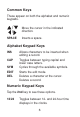
Function Keys 2nd Toggles between the two keypads. Cycles between Home Time, World Time, Alarm and Timer. Toggles between the Personal and Business phone books. Toggles between the Schedule and Memo books. Cycles between Keyboard Wiz, Memory and Chance. Cycles between the math Calculator, Calorie Calculator, Currency Converter, Euro Converter and Metric Converter. / Scroll through menu options, records, world cities and conversions. Do Tip/Discount calculations. ENTER Selects an item.
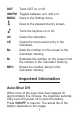
Common Keys These appear on both the alphabet and numeric keypads. / / SPACE Move the cursor in the indicated direction. Inserts a space. Alphabet Keypad Keys INS CAP SYM EDIT DEL Allows characters to be inserted when editing a record. Toggles between typing capital and lower case letters. Cycles through the available symbols. Starts the edit mode. Deletes a character at the cursor. Deletes a record. Numeric Keypad Keys Tap the 2nd key to see these options.
DST Turns DST on or off. AM/PM Toggles between a.m. and p.m. MENU Goes to the Setting menu. Goes to the password entry screen. Turns the keytone on or off. AC Clears the calculator. CE Clears the most recent entry in the Calculator. M+ Adds the number on the screen to the Calculator memory. M- Subtracts the number on the screen from the number in the Calculator memory. MRC Shows the number stored in the Calculator memory.
Keytone The keytone is the beep that sounds when any key is tapped. To turn the keytone off or on, touch on the numeric keypad. Typing Capitals and Lower Case Letters Tap CAP. in the alphabet keypad to toggle between entering capital and lower case letters. When the capitals keypad is selected, CAPS appears to the top right of the display. Symbols and Accents From the alphabet keypad, you can enter 31 different symbols such as $, £, ¥ etc.
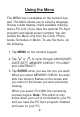
Using the Menu The MENU key is available on the numeric keypad. The Menu allows you to select a language, choose a date display, check available memory, start a PC-Link (if you have the optional PC Sync program) and adjust screen contrast. You can access the Menu only from the Clock, Phone books, Schedule or Memo. To use the menu, do the following. 1. Tap MENU on the numeric keypad. 2. Tap or to cycle through LANGUAGE?, DATE SET?, MEMORY CHECK?, PC-LINK? and CONTRAST?. 3.
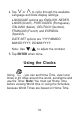
4. Tap or to cycle through the available Language and Date display settings. LANGUAGE options are ENGLISH, NEDERLANDS (Dutch), PORTUGÛES (Portuguese), ITALIANO (Italian), DEUTSCH (German), FRANÇAIS (French) and ESPAÑOL (Spanish). DATE SET options are YYYY/MM/DD, MM/DD/YYYY, DD/MM/YYYY. Note: Use / to adjust the contrast. 5. Tap ENTER when done. Using the Clocks Using , you can set Home Time, view local times in 45 cities around the world, set Alarms and use the Timer.
Setting Home Time You can select daylight savings time and the time format you want. To do this, tap , tap 2nd and then tap DST for daylight savings time or 12/24 for the 12- or 24-hour time format. When you turn DST on, appears to the right of the display. When you select the 12-hour format, A or P appears to the left of the time to indicate a.m. or p.m. You can change the a.m./p.m. setting when setting the time. To set Home Time, do the following. 1. Tap .
The city name you enter can have a maximum of six letters. 4. Tap to go to the date field. If you enter a six letter name, the cursor automatically goes to the date field. 5. Enter the date. The date display depends on your selection in DATE SET in the Menu. 6. Set the time. If you selected the 12-hour time format, tap AM/PM for the time you want. 7. Tap ENTER to save your settings.
Viewing World Time 1. Tap screen. until you see to the left of the 2. Tap or to view the date and time in the list of available cities.
Setting the Alarms You can set three alarms: a daily alarm indicated by , an hourly chime indicated by a schedule reminder indicated by , and . The daily alarm sounds for 60 seconds. Tap any key to turn it off. The hourly chime beeps for one second on the hour, every hour. To set the alarms, do the following: 1. Tap until you see ALARM on the screen. 2. Tap EDIT. You see the ALARM SET screen. 3. Tap repeatedly to cycle through the available alarms.
Using the Timer You can use your organizer as a Timer. To set the Timer, do the following. 1. Tap until you see TIMER on the screen. 2. Tap the number keys or use the time you want. / to input Use / to move the cursor. 3. Tap ENTER to store your setting. The Timer will beep at the appointed time no matter where you are in the organizer. Tap any key to stop the beeping. Using the Phone, Schedule and Memo Books Entering a Phone Record Your organizer has two phone books: PERSONAL and BUSINESS.
1. Tap book. once for the PERSONAL phone Tap twice for the BUSINESS phone book. 2. Type a name. The display automatically goes to the NAME field. 3. Tap / to go to the fields you want and enter data. The keypad automatically changes from the alphabet to the numeric in the fields where you need to enter numbers. 4. Tap ENTER when done to store your record. STORED! Appears on the display. Entering a Schedule or Memo toggles between the SCHEDULE and MEMO books.
2. Start entering your task. You can enter a maximum of 36 characters. Tap / to move between the fields. 3. Enter the date and time. 4. Tap ENTER to store your record. To enter a memo, do the following. 1. Tap until you see MEMO? on the screen. 2. Enter your memo. You can enter a maximum of 36 letters on the first line. You can enter a maximum of 36 numbers on the second and third lines. Tap the arrow keys to move between the lines. 3. Tap ENTER to store your record.
Searching and Viewing Records Telephone and memo records are sorted alphabetically. Schedule records are sorted chronologically. 1. Tap 2. Tap or / to find the book you want. to scroll through your records. You can also enter the first few letters of your record and then tap to go directly to the record. / / to view your records. 3. Use The arrows next to the display indicate which ones to use. / Note: In a Phone record, the name and home and fax numbers are initially displayed.
Autoscrolling is available when viewing telephone records. Tap and hold or for about 3 seconds to start autoscrolling. Tap the arrow again to stop. Tap CE to exit the scrolling mode. Tap to see the Cell phone number. Press it again to return to the Home/Fax numbers. Editing Records 1. Find the record you want to edit. 2. Tap EDIT. / / / to move the cursor to the 3. Tap characters you want to edit. Tap / to move to the field you want. 4. Enter your edits and tap ENTER to store them. Deleting Records 1.
Password Protection You can lock the data in your Telephone, Schedule and Memo books by setting a password. Note: You can use all the other features in this organizer without the password. Warning! Please keep written records of your data. If you forget your password, you will not be able to recover any of the data stored in your handheld organizer. To bypass the password, you will have to perform a system reset, which will clear the password but will also erase all the data stored in memory.
Viewing Confidential Data 1. Select the Telephone, Schedule and Memo book. PASSWORD? is displayed. 2. Type your password and tap ENTER. Tap / records. to scroll through your confidential Changing the Password 1. From Home Time mode, tap 2nd. 2. Tap . PASSWORD? is displayed. 3. Type your password and tap ENTER. EDIT PASS.? is displayed. 4. Tap ENTER. Note: To delete the existing password, tap CE. DEL PASS.? is displayed. Tap ENTER again. 5. Type a new password and tap ENTER. RECONFIRM! is displayed. 6.
Using the Calculator Tap to cycle through a math Calculator, Calorie Calculator, Currency Converter, Euro Converter and Metric Converter. The Tip/Discount calculator is also available from the math Calculator. Making a Calculation 1. Tap once. The numeric keypad appears. 2. Enter the numbers you want. You can enter a maximum of 10 digits. 3. Tap +,—, x or ÷ to perform an addition, subtraction, multiplication or division. Tap √ to calculate the square root. 4. Enter another number. 5.
Using the Calculator Memory 1. In the Calculator, make a calculation or type a number. 2. Tap M+ to add the number on the screen to the Calculator memory. To subtract the number on the screen from the number stored in memory, tap M-. M appears on the screen to indicate the number is stored in memory. 3. To retrieve the number from memory, tap MRC once. To clear the memory, tap MRC twice. Using the Tip/Discount Calculators Before calculating a tip or discount you must first set the percentage you want.
Calculating the Tip or Discount 1. Tap once to see the calculator. 2. Enter the amount of the bill. Or enter the price of an item. 3. Tap Tap ($) to see the gratuity due. (%) to see the discount amount. 4. Tap ($) again to see the sum of the bill plus the gratuity. Tap (%) again to see the sum of the item minus the discount. Counting Calories 1. Tap until you see the Calorie Calculator. When there are no stored records, you see NO DATA! on the screen. When records are stored, you see the first record.
Tap / to scroll across the screen and read all the text. 4. Tap and enter the date. 5. Tap and enter the time. You can tap AM/PM to enter the proper time of day if you previously selected the 12-hour time display format. 6. Tap . The unit for the food you selected will appear. 7. Enter the relevant number. For example, if the food is Pizza, enter the number of slices. 8. Tap ENTER. The latest record is displayed on the screen. Getting a Report 1. Tap until you see the Calorie Calculator. 2.
Viewing and Deleting Records 1. Tap until you see the Calorie Calculator. 2. Tap / to scroll through your records. 3. When you see the record you wish to delete, tap DEL. 4. Tap ENTER to delete the record. Tap any other key to cancel the deletion. Using the Currency Converter You must first set currency rates before doing currency conversions. There are 5 rates you can set. Setting a Rate 1. Tap until you see USD —> EURO on the screen. 2. Use / to find the conversion set you want to edit. 3.
5. Tap to move the cursor to the next currency and enter the letters for that currency. 6. Tap ENTER to go to the rate field. 7. Enter a new rate. Note: The rate you set must equal 1 unit of the first currency. For example, if your first currency is USD and the second YEN the rate you set will be 133.61 or whatever is the current exchange rate. 8. Tap ENTER to store the new settings. Doing Currency Conversion 1. Tap until you see USD —> EURO on the screen. 2. Use / to find the conversion set you want.
Using the EURO Converter Use the EURO converter for conversion between the Euro and 12 national currencies. The built-in rates are those adopted by the Council of the European Union for the 12 participating countries. These rates cannot be edited in accordance with the rounding regulations set by the European commission. Rates are set as follows: EURO CONVERSION TABLE 1 EURO = 40.3399 BEF (Belgian Francs) = 1.95583 DEM (German Marks) = 166.386 ESP (Spanish Pesetas) = 6.55957 FRF (French Francs) = 0.
Using the Metric Converter There are eight built-in conversions. inch yd mile F˚ ft oz lb gal gal 1. Tap screen. 2. Use cm m km C˚ m g kg l US l UK until you see inch—>cm on the / to find the conversion you want. Tap or to change the direction of the conversion. 3. Enter the numbers you want. 4. Tap ENTER to do the conversion. 5. Tap CE to clear the converter.
Playing the Games There are 3 fun games to choose from: KEYBOARD WIZ, MEMORY and CHANCE. Keyboard Wiz This game tests your knowledge of the alphabet keypad and your reflexes! Letters race across the display. The object of the game is to tap the letter that races across the screen. There are 20 levels of speed. 1. Tap until you see KEYBOARD WIZ on the screen. 2. Tap ENTER to play at level one or enter a number from 1-20 and then tap ENTER. 3. Tap the letter that is leftmost on the screen.
1. Tap screen. until you see MEMORY on the 2. Use / to cycle through the levels until you find the one you want. 3. Tap ENTER to start the game. 4. Tap the direction arrows to move to a hidden number and tap ENTER to see it. The number on the cursor is revealed. Continue doing this until you find matching numbers. The object of the game is to find all the matching number sets. When you reveal two similar numbers one after the other, both numbers stay revealed, otherwise the numbers remain hidden.
You see the message Set#(1-9) and the number 6 flashes to indicate that this can be changed. 2. Tap ENTER to select 6 or enter any number from 1-9. For example, enter 5. 3. Tap ENTER again. You can now select your highest number which must be equal to or less than 99. 4. To select a maximum number, enter a new number. For example, enter 75. 5. Tap ENTER to see the numbers. You will see five numbers in the 1-75 range. 6. Tap ENTER repeatedly to see new sets of numbers. 7.
Replacing the Battery This organizer uses 1 CR2032, 3-volt lithium battery. Before you follow these steps you should have a small Phillips screwdriver (one that fits into screws with and “x” notch) and the new battery at hand. Warning! When no batteries are installed, this organizer will save your information for only about 30 seconds. So quickly install the new battery once you remove the old one. 1. Turn the organizer off and turn it over. 2.
Keep Written Copies of Important Data This organizer stores your information as long as the battery supplies power. Warning! If the battery loses power or is removed, all your information will be lost. Information can also be lost or corrupted if you make a mistake while operating this organizer. Therefore, always keep written copies of your important information in case it is corrupted or lost. Specifications Model: RT-8015 Personal Organizer Size: 7.87 x 10.8 x 1.02 cm Weight: 70.
Copyrights, Trademarks and Patents © 2004 Franklin Electronic Publishers, Inc. Burlington, N.J. 08016-4907 USA. All rights reserved. ROLODEX® is a registered trademark of Berol Corporation, a subsidiary of Newell Rubbermaid, Inc. For technical support, please call (609)-386-8997 and choose option 1 or visit us on the web at www.franklin.com This unit may change operating modes due to Electro-static Discharge.
FCC Notice NOTE: This equipment has been tested and found to comply with the limits for a Class B digital device, pursuant to Part 15 of the FCC Rules. These limits are designed to provide reasonable protection against harmful interference in a residential installation. This equipment generates, uses and can radiate radio frequency energy and, if not installed and used in accordance with the instructions, may cause harmful interference to radio communications.
Limited Warranty (U.S. only) LIMITED WARRANTY, DISCLAIMER OF WARRANTIES AND LIMITED REMEDY (A) LIMITED WARRANTY. FRANKLIN WARRANTS TO THE ORIGINAL END USER THAT FOR A PERIOD OF ONE (1) YEAR FROM THE ORIGINAL DATE OF PURCHASE AS EVIDENCED BY A COPY OF YOUR RECEIPT, YOUR FRANKLIN PRODUCT SHALL BE FREE FROM DEFECTS IN MATERIALS AND WORKMANSHIP. THIS LIMITED WARRANTY DOES NOT INCLUDE DAMAGE DUE TO ACTS OF GOD, ACCIDENT, MISUSE, ABUSE, NEGLIGENCE, MODIFICATION, UNSUITABLE ENVIRONMENT OR IMPROPER MAINTENANCE.
PERSON OR ENTITY FOR ANY INDIRECT, INCIDENTAL, SPECIAL, OR CONSEQUENTIAL DAMAGES WHATSOEVER, INCLUDING, BUT NOT LIMITED TO, LOSS OF REVENUE OR PROFIT, LOST OR DAMAGED DATA OR OTHER COMMERCIAL OR ECONOMIC LOSS, EVEN IF WE HAVE BEEN ADVISED OF THE POSSIBILITY OF SUCH DAMAGES, OR THEY ARE OTHERWISE FORESEEABLE. WE ARE ALSO NOT RESPONSIBLE FOR CLAIMS BY A THIRD PARTY.
TRACKABLE FORM OF DELIVERY TO FRANKLIN FOR YOUR RETURN. RPP-28012-00 Rev.