RK-8203 User’s Guide www.franklin.
License Agreement READ THIS LICENSE AGREEMENT BEFORE USING THE ELECTRONIC REFERENCE. YOUR USE OF THE ELECTRONIC REFERENCE DEEMS THAT YOU ACCEPT THE TERMS OF THIS LICENSE. IF YOU DO NOT AGREE WITH THESE TERMS, YOU MAY RETURN THIS PACKAGE WITH PURCHASE RECEIPT TO THE DEALER FROM WHICH YOU PURCHASED THE ELECTRONIC REFERENCE AND YOUR PURCHASE PRICE WILL BE REFUNDED. ELECTRONIC REFERENCE means the software product and documentation found in this package and FRANKLIN means Franklin Electronic Publishers, Inc.
ELECTRONIC REFERENCE without compliance with appropriate governmental regulations. The ELECTRONIC REFERENCE contains Franklin’s confidential and proprietary information which you agree to take adequate steps to protect from unauthorized disclosure or use. This license is effective until terminated. This license terminates immediately without notice from FRANKLIN if you fail to comply with any provision of this license.
Cautions • Do not carry the device in the back pocket of your slacks or trousers. • Do not drop the device or apply excessive force to it. • Do not subject the device to extreme temperatures. • Clean only with a soft, dry cloth. • Since this product is not waterproof, do not use it or store it where fluids can splash onto it. Raindrops, water spray, juice, coffee, steam, perspiration, etc. will also cause the device to malfunction.
Getting Started The first time you use this device, you should perform a system reset. Pressing the reset button with more than light pressure may permanently disable your device. Warning! A system reset erases any user-entered information and clears all settings. 1.Turn the device over and carefully remove the battery insulation tab. 2. Press to turn the device off. 3. Use a paper clip to gently press the reset button on the back of the device.
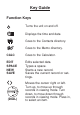
Key Guide Function Keys Turns the unit on and off. Displays the time and date. ABC Goes to the Contacts directory. Goes to the Memo directory. CALC Goes to the Calculator. EDIT SPACE NEW SAVE Edits selected data. Types a space. Starts a new record. Saves the current record or settings. (DIAL) Moves the cursor right or left. Turn up, to move up through records in viewing mode. Turn down, to move down through records in viewing mode. Press in, to select an item.
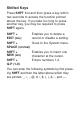
Shifted Keys Press SHFT first and then press a key within two seconds to access the function printed above the key. If you take too long to press another key, you may be required to press SHFT again. SHFT + EDIT (DEL) Enables you to delete a record or disable a setting. SHFT + Goes to the System menu. SPACE (SYSTEM) SHFT + NEW (INS) Enables you to insert one character at the cursor. SHFT + Q-P (1-0) Enters numbers 1-0.
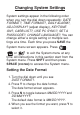
Changing System Settings System settings appear in the following order when you turn the dial down repeatedly: DATE FORMAT?, TIME FORMAT?, DAILY ALARM?, ADJ DISPLAY? (adjust display), KEYTONE ON?, CARB LIST?, USE PC SYNC?, SET A PASSCODE?, CHANGE LANGUAGE?. You can change either a single setting or multiple settings at a time. Each time you press SAVE the System menu screen appears. Press , or to exit the System menu at any time. All instructions in this section start from the System menu.
Setting the Time Format 1. Turn the dial down until you see TIME FORMAT? 2. Press Y to change the time format. The time format screen appears. 3. Press N to toggle between AM/PM TIME and 24 HR TIME. The default setting is AM/PM TIME. 4. When you see the format you want, press Y to select it. Using a Daily Alarm You can set, change or turn a daily alarm off in the System menu. Setting the Daily Alarm 1. Turn the dial down until you see DAILY ALARM?. 2. Press Y to set the alarm. You see SET ALARM FOR….
Changing the Daily Alarm 1. Turn the dial down until you see DAILY ALARM?. 2. Press Y to change the alarm. The current alarm setting appears on the screen. 3. Enter a new time for the alarm. 4. Press SAVE to save the alarm setting. Turning Off the Daily Alarm 1. Turn the dial down until you see DAILY ALARM?. 2. Press Y to see the current daily alarm setting. 3. Press SHFT and then press EDIT (DEL). DELETE? Y/N appears on the screen. 4. Press Y to delete the alarm setting.
Changing the Contrast 1. Turn the dial down until you see ADJ DISPLAY?. 2. Press Y to adjust the contrast of the display. PRESS < OR > TO ADJUST CONTRAST appears on the screen. 3. Press to increase the contrast. Press to decrease the contrast. 4. Press SAVE to save the display setting. Setting the Keytone The keytone is the beep that sounds when any key is pressed. The default setting is active. To turn the keytone off, do the following: 1. Turn the dial down until you see KEYTONE ON?. 2.
2. Press Y to view the list. 3. Turn the dial down to scroll the list or type a letter to go to the first food item starting with that letter. 4. Press the dial in to select an item. 5. Turn the dial to scroll down. Press to scroll right or left. Using PC Sync Please see “Synchronizing Records” for details. Using a Passcode You can lock your device by setting a passcode. Once you activate your passcode you will be required to enter it each time you turn on your unit.
Setting a Passcode 1. Turn the dial down until you see SET A PASSCODE?. 2. Press Y. You are prompted to enter a four-digit passcode. 3. Enter a four-digit passcode. 4. Press SAVE to save your passcode. You are prompted to confirm your passcode. 5. Press Y to confirm and activate your passcode. Press N to exit without confirming your passcode. The passcode is not set. Changing/Deleting a Passcode 1. Turn the dial down until you see SET A PASSCODE?. 2. Press Y. 3. Enter your existing passcode. 4.
Selecting a Language You can change the language of the screen prompts and menus. There are five languages that appear in the following order when you turn the dial down in the Language menu: ENGLISH, ESPAÑOL (Spanish), FRANÇAIS (French), DEUTSCH (German) and ITALIANO (Italian). English is the default language. To select a different language, do the following. 1. Turn the dial down until you see CHANGE LANGUAGE?. 2. Press Y. Press N to return to the main System menu screen. 3.
Setting the Time and Date There are three fields in the Time/Date screen: day, date and time. Note: The format for the time and date displays is set in the System menu. to the left of the screen marks the active field. A blinking cursor marks the spot where the character you enter will be placed. 1. Press . If no time or date has been previously set, the display reads HH:MM A/P and MM/DD/YYYY. 2. Press EDIT. to the left of the screen indicates the date field is active. 3. Enter the date.
Using the Contacts Directory Each Contacts record has seven fields: NAME?, ADDRESS?, E-MAIL?, HOME#?, WORK#?, CELL#?, FAX#?. You can enter a maximum of 36 characters in all fields except ADDRESS? and EMAIL?. A maximum of 48 characters can be entered in these two fields. to the left of the screen indicates the active line. Arrows to the right of the screen indicate which arrow keys you can press to move around the screen.
3. Enter the full name of the contact you want to add. Note: You must enter a name if you wish to save the entry. You can also enter a name first and then press NEW. Note: The first character in the NAME? field cannot be a symbol. It must be a letter or a number. Press SHFT and use Q-P to enter numbers. Use to move the flashing cursor left or right. 4. Turn the dial down to move to each consecutive field and enter data in the fields you want. The contact’s name remains on the top line.
Viewing Contacts There are two ways to search for a contact’s information. The first way is by entering letters at the NAME? screen and searching for a matching record. The second way is by using the letter tabs at the top of the screen. Read the following to learn how to use these two methods. Using Letters or Numbers to View Contacts 1. Press ABC . 2. Type one or more characters of the name you want. 3. Push in the dial to start the search.
4. Push in the dial to view the fields of the record you want. appears next to the name field to show the record is selected. 5. Turn the dial up or down to move up and down through the fields of the record. Only fields with data in them are displayed. If any field contains more than 12 characters, use to scroll left or right to read the rest of the data. Press and hold the left or right. to scroll to 6. Press ABC to exit that record. NAME? appears on the screen.
If you entered numbers in the NAME? field instead of letters, select #. 4. Turn the dial up or down to scroll through the records for that letter. Follow Steps 4-6 above to view the fields of the record you want. Editing a Contact Record 1. Find the record you want to edit using one of the methods above. 2. Press EDIT. The first character of the name field blinks. 3. Turn the dial down to find the field you want. As the unit is now in Edit mode, all fields are displayed.
Deleting a Contact Record Find the record you want to delete. 1. Press SHFT and then press EDIT (DEL). DELETE? Y/N appears on the screen. 2. Press Y to delete the record. Press N to cancel the deletion. NAME? appears on the screen. Using the Memo Directory Each Memo record consists of four fields: MEMO?, MM/DD/YYYY?, HH:MM A/P and ALERT? Y/N. You can enter a maximum of 48 characters in the first field. You can set an alert for each memo.
2. Press NEW. appears to the left of the screen and a flashing cursor appears on the first line after a letter is entered. Each letter or number you enter is inserted in the spot marked by the flashing cursor. 3. Enter your memo. You can also enter a memo first and then press NEW. Press SHFT and use Q-P to enter numbers. Use to move the flashing cursor left or right. Once the data exceeds a 12-character limit, letters scroll off the screen to the left. 4.
9. Press Y to set the annual alert. This saves your memo as an annual reminder so you do not have to re-enter the memo each year. Press N if you do not wish to set an annual alert. The record is saved and MEMO? appears on the screen. Viewing Memos Turn the dial to scroll through the list of memos. To find a particular memo, follow the steps below. 1. Press . 2. Type one or more characters of the memo you want. 3. Push in the dial to start the search. The text of the closest matching record is displayed.
4. Push in the dial to view the fields of the record you want. appears next to the memo field to show the record is selected. 5. Turn the dial up or down to move through the fields of the record. Only fields with data in them are displayed. If any field contains more than 12 characters, use to scroll left or right to read the rest of the data. Press and hold the left or right. to scroll to 6. Press to exit that record. MEMO? appears on the screen.
4. Press SHFT and then press NEW (INS) to insert one character before the blinking character. 5. Press SAVE at any time to save your changes. MEMO? appears on the screen. Deleting a Memo 1. Find the memo you want to delete. 2. Press SHFT and then press EDIT (DEL). DELETE? Y/N appears on the screen. 3. Press Y to delete the record. Press N to cancel the deletion. MEMO? appears on the screen. ✔ Memo Alerts The memo reminder alarm sounds for 30 seconds. Press any key to shut off the alarm.
Using the Calculator 1. Press CALC. 2. Type a number. You can type up to 10 digits. To type a decimal, press J(.). All numbers and math functions are automatically active in the calculator. That means you do not have to press SHFT to enter a number or function. 3. Press D(+), F(—), G(x), H(÷) to add, subtract, multiply, or divide, respectively. 4. Type another number. 5. Press L(=) to do the calculation. Or press K(%) to calculate the percentage. 6. Press CALC or EDIT to clear the calculator.
Installing the Rolodex Electronics Desktop Manager The Rolodex® Electronics Desktop Manager is the PC software program that transfers data between your Rolodex® device and a personal computer (PC). You can synchronize MS Outlook® 97/98/2000/2002 and Intellisync Mobile Desktop files. Note: You must install the Desktop Manager software before connecting your device to your PC.
To install the Desktop Manager on your PC: 1. Insert the Rolodex® Electronics Desktop Manager CD into the CD-ROM drive on your PC. The Setup screen appears. If this screen DOES NOT launch automatically, follow these steps. • Go to Start | Run. • Type d:/autorun and press ENTER. 2. Select the Install Rolodex Electronics Desktop Manager box. Select your model number, if needed. To install Intellisync Mobile Desktop, select the corresponding box.
Synchronizing Records Before you can synchronize records you must: 1. Install the Rolodex® Electronics Desktop Manager onto your PC. 2. Connect the Rolodex® device to the PC using the serial cable provided. • Turn your PC off. • Connect the 9-pin plug of the cable into a free communications (COM) port. • Connect the single-pin plug of the cable into the PC PORT hole on your Rolodex device. 3. Start the Desktop Manager.
Synchronizing Data You can synchronize personal information between a PC organizer program and an organizer program on your device. Note: Make sure the cable is connected securely to both the PC and the device. To transfer data from the Desktop Manager, follow these steps. 1. Click or File | Synchronize. 2. On your device, press SHFT and then press SPACE (SYSTEM). 3. Turn the dial down until you see USE PC SYNC?. 4. Press Y.
Replacing the Battery This device uses two CR-2032 lithium batteries. Replace the batteries as soon as the display begins to dim or the low battery warning appears. Please have a small Phillips screwdriver and the new batteries at hand before you follow the steps below. Warning! When changing the batteries, make sure the device is not on a hard surface. If is pressed accidentally, your data will be lost.
Specifications • Model: RK-8203U Rolodex® • Size: 10.6 X 8.52 X 1.19 cm • Weight: 2.5 oz • Battery: 2 CR-2032 Lithium • Memory Size: 256 KB ISBN: 1-59074-202-8 Cleaning this Product To clean this product, spray a mild glass cleaner onto a cloth and wipe its surface. Don’t spray liquids directly onto the unit. Don’t use or store your device in extreme or prolonged heat, cold, humidity, or other adverse conditions.
FCC Tested To Comply With FCC Standards. FOR HOME OR OFFICE USE Customer Support (609) 386-8997. This unit may change operating modes due to Electro-static Discharge. Normal operation of this unit can be re-established by pressing the reset key, or by removing/replacing batteries. FCC NOTICE This device complies with Part 15 of the FCC Rules.
ence will not occur in a particular installation. If this equipment does cause harmful interference to radio or television reception, which can be determined by turning the equipment off and on, the user is encouraged to try to correct the interference by one or more of the following measures: –Reorient or relocate the receiving antenna. –Increase the separation between the equipment and receiver. –Connect the equipment into an outlet on a circuit different from that to which the receiver is connected.
DENT, MISUSE, ABUSE, NEGLIGENCE, MODIFICATION, UNSUITABLE ENVIRONMENT OR IMPROPER MAINTENANCE. THE SOLE OBLIGATION AND LIABILITY OF FRANKLIN, AND YOUR EXCLUSIVE REMEDY UNDER THIS LIMITED WARRANTY, WILL BE REPAIR OR REPLACEMENT WITH THE SAME OR AN EQUIVALENT PRODUCT OF THE DEFECTIVE PORTION OF THE PRODUCT, AT THE SOLE OPTION OF FRANKLIN IF IT DETERMINES THAT THE PRODUCT WAS DEFECTIVE AND THE DEFECTS AROSE WITHIN THE DURATION OF THE LIMITED WARRANTY.
OTHER PERSON OR ENTITY FOR ANY INDIRECT, INCIDENTAL, SPECIAL, OR CONSEQUENTIAL DAMAGES WHATSOEVER, INCLUDING, BUT NOT LIMITED TO, LOSS OF REVENUE OR PROFIT, LOST OR DAMAGED DATA OR OTHER COMMERCIAL OR ECONOMIC LOSS, EVEN IF WE HAVE BEEN ADVISED OF THE POSSIBILITY OF SUCH DAMAGES, OR THEY ARE OTHERWISE FORESEEABLE. WE ARE ALSO NOT RESPONSIBLE FOR CLAIMS BY A THIRD PARTY.
ATTN: SERVICE DEPARTMENT ONE FRANKLIN PLAZA BURLINGTON, NJ 08016-4907 IF YOU RETURN A FRANKLIN PRODUCT, PLEASE INCLUDE A NOTE WITH THE RMA, YOUR NAME, ADDRESS, TELEPHONE NUMBER, A BRIEF DESCRIPTION OF THE DEFECT AND A COPY OF YOUR SALES RECEIPT AS PROOF OF YOUR ORIGINAL DATE OF PURCHASE. YOU MUST ALSO WRITE THE RMA PROMINENTLY ON THE PACKAGE IF YOU RETURN THE PRODUCT, OTHERWISE THERE MAY BE A LENGTHY DELAY IN THE PROCESSING OF YOUR RETURN.
This warranty explicitly excludes defects due to misuse, accidental damage, or wear and tear. This guarantee does not affect the consumer’s statutory rights. Limited Warranty (outside U.S., EU and Switzerland) This product, excluding batteries and liquid crystal display (LCD), is guaranteed by Franklin for a period of one year from the date of purchase. It will be repaired or replaced with an equivalent product (at Franklin’s option) free of charge for any defect due to faulty workmanship or materials.