
Electronic Accessory User Manual


Table Of Contents
- 1. Getting Started
- 2. Quick Guide to Product Features
- 3. BOOKS Menu
- 3.1 Search Feature
- 3.2 Collins Dictionaries
- 3.3 Diccionario General de la Lengua Español Vox
- 3.4 Merriam-Webster’s Advanced Learner’s English Dictionary
- 3.5 Diccionario Merriam-Webster de Sinónimos y Antónimos en Inglés
- 3.6 Visual Dictionaries
- 3.7 Merriam-Webster’s ALD Supplemental Data
- 3.8 Franklin Thesaurus
- 3.9 Looking Up Inflections
- 3.10 Inflected Form Searching
- 3.11 Misspelling Words
- 3.12 Confusable Words
- 3.13 Uncertain Spellings
- 3.14 Searching for Idioms, Usage Examples and Collocations
- 3.15 Highlighting Words
- 3.16 Adding Words to My Word List
- 3.17 Hints on Inputting Words
- 4. LEARN Menu
- 5. EXERCISES Menu
- 6. TOOLS Menu
- 7. SETTINGS Menu
- 8. General Controls
- 9. PC Connections
- 10. Additional Information
- 11. Warranty Information
6
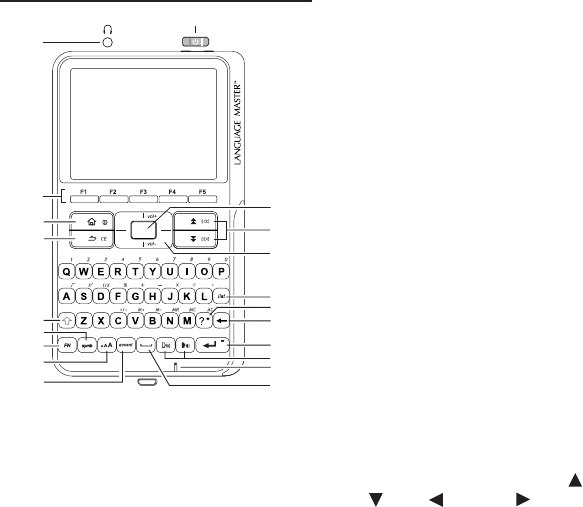
1.5 Key Guide
1
2
3
4
5
6
7
8
9
10
11
12
13
14
15
16
17
18
19
20
21
1. Turns on or o.
2. Headphone jack
3. Soft keys – Press F1 to F5 that
correspond to the functional labels at
the bottom of the screen.
4. Goes to the main menu.
5. Backs up or clears all entries, or turns
o selection mode in an entry.
6. Shifts to type capital letters.
7. Displays a menu for inputting
symbols.
8. Performs additional functions in
combination with other keys.
9. Changes the font size on the screen.
10. Selects accents for characters when
typing.
11. USB port
12. At menus or dictionary entries, pages
down. At word entry, types a space.
13. Microphone
14. Speak the source or target language
15. Enters a word, selects an item,
submits a response or begins
selection mode in an entry.
16. Backs up, erases a letter, or turns o
selection mode in an entry.
17. At a word entry screen, types a “?”
to stand for an unknown letter in a
word.
18. Saves words to My Word List or goes
to My Word List.
19. Direction keys – Moves up ( ), down
( ), left ( ) or right ( ). The arrows
at the top of the screen show which
direction keys you can press to move
around menus or view more text.
20. Scrolls up or down a screen page.
21. Enters a word, selects an item,
submits a response or begins
selection mode in an entry.