
Electronic Accessory User Manual


Table Of Contents
- 1. Getting Started
- 2. Quick Guide to Product Features
- 3. BOOKS Menu
- 3.1 Search Feature
- 3.2 Collins Dictionaries
- 3.3 Diccionario General de la Lengua Español Vox
- 3.4 Merriam-Webster’s Advanced Learner’s English Dictionary
- 3.5 Diccionario Merriam-Webster de Sinónimos y Antónimos en Inglés
- 3.6 Visual Dictionaries
- 3.7 Merriam-Webster’s ALD Supplemental Data
- 3.8 Franklin Thesaurus
- 3.9 Looking Up Inflections
- 3.10 Inflected Form Searching
- 3.11 Misspelling Words
- 3.12 Confusable Words
- 3.13 Uncertain Spellings
- 3.14 Searching for Idioms, Usage Examples and Collocations
- 3.15 Highlighting Words
- 3.16 Adding Words to My Word List
- 3.17 Hints on Inputting Words
- 4. LEARN Menu
- 5. EXERCISES Menu
- 6. TOOLS Menu
- 7. SETTINGS Menu
- 8. General Controls
- 9. PC Connections
- 10. Additional Information
- 11. Warranty Information
48
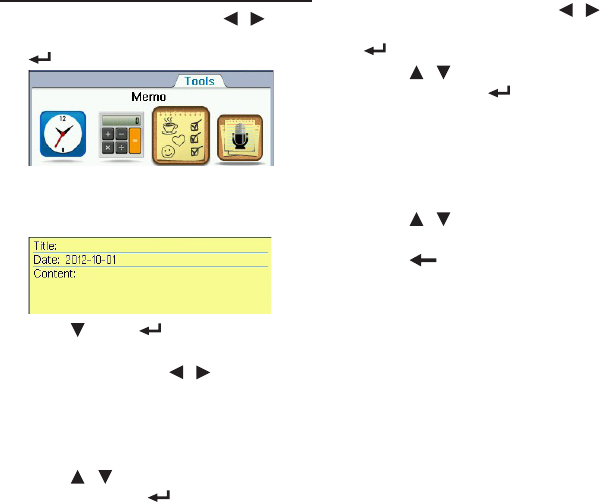
6.3 Memo
1. In the Tools menu, press / to
select “Memo” and then press OK /
.
2. Press F1 [New].
3. Enter information in the available
elds.
• Press , OK or to advance to the
next eld.
• Forthedate,press / to move
between elds and use the number
keys to make changes (if necessary).
4. Press F1 [Cat.] to assign a category
to your memo.
• Press / to select a category and
then press OK / to conrm.
5. When done, press F4 [Save].
• Toquitwithoutsaving,press F5
[Close].
Viewing Entries
1. In the Tools menu, press / to
select “Memo” and then press OK /
.
2. Press / to select an entry and
then press OK / to view.
• Press F4 [Preview] to preview the
memo. Press this soft key again to
hide the preview.
• PressF5 [Filter] to view the entries
from the selected categories only.
3. Press / to scroll through the
available elds.
4. Press to exit.
Editing Entries
Use the following soft keys:
• F2 [Delete]: To delete the selected or
current entry.
• F3 [Clear]: To erase all entries.
• F3 [Edit]: To edit the current entry.