
Electronic Accessory User Manual


Table Of Contents
- 1. Getting Started
- 2. Quick Guide to Product Features
- 3. BOOKS Menu
- 3.1 Search Feature
- 3.2 Collins Dictionaries
- 3.3 Diccionario General de la Lengua Español Vox
- 3.4 Merriam-Webster’s Advanced Learner’s English Dictionary
- 3.5 Diccionario Merriam-Webster de Sinónimos y Antónimos en Inglés
- 3.6 Visual Dictionaries
- 3.7 Merriam-Webster’s ALD Supplemental Data
- 3.8 Franklin Thesaurus
- 3.9 Looking Up Inflections
- 3.10 Inflected Form Searching
- 3.11 Misspelling Words
- 3.12 Confusable Words
- 3.13 Uncertain Spellings
- 3.14 Searching for Idioms, Usage Examples and Collocations
- 3.15 Highlighting Words
- 3.16 Adding Words to My Word List
- 3.17 Hints on Inputting Words
- 4. LEARN Menu
- 5. EXERCISES Menu
- 6. TOOLS Menu
- 7. SETTINGS Menu
- 8. General Controls
- 9. PC Connections
- 10. Additional Information
- 11. Warranty Information
37
for level advancement and progress
check.
• Language: Selects a language as the
exercise language.
• Skills: Selects a skill level.
• Content: Selects a dictionary as the
source of words.
2. Press F1 [Conrm] when done.
5.3 Phrase Builder
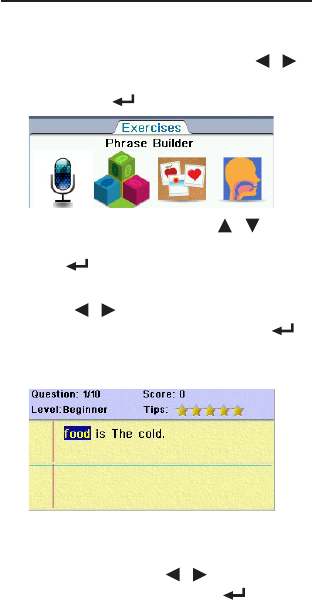
In Phrase Builder, you have to arrange the
words of a sentence in the correct order.
1. In the Exercises menu, press /
to select “Phrase Builder” and then
press OK / .
2. In Phrase Builder, press / to
select a user name and then press
OK / .
• See5.1 Creating User Names.
3. Press / to select a word in the
word eld and then press OK /
to build a sentence in the phrase
eld.
Phrase eld
Word eld
• Tocorrectamistake,pressF3
[Phrase] to shift the highlight to the
phrase eld. Press / to select a
word and then press OK / to erase
the mistake. Press F3 [Word] to shift
the highlight back to the word eld.