
Electronic Accessory User Manual


Table Of Contents
- 1. Getting Started
- 2. Quick Guide to Product Features
- 3. BOOKS Menu
- 3.1 Search Feature
- 3.2 Collins Dictionaries
- 3.3 Diccionario General de la Lengua Español Vox
- 3.4 Merriam-Webster’s Advanced Learner’s English Dictionary
- 3.5 Diccionario Merriam-Webster de Sinónimos y Antónimos en Inglés
- 3.6 Visual Dictionaries
- 3.7 Merriam-Webster’s ALD Supplemental Data
- 3.8 Franklin Thesaurus
- 3.9 Looking Up Inflections
- 3.10 Inflected Form Searching
- 3.11 Misspelling Words
- 3.12 Confusable Words
- 3.13 Uncertain Spellings
- 3.14 Searching for Idioms, Usage Examples and Collocations
- 3.15 Highlighting Words
- 3.16 Adding Words to My Word List
- 3.17 Hints on Inputting Words
- 4. LEARN Menu
- 5. EXERCISES Menu
- 6. TOOLS Menu
- 7. SETTINGS Menu
- 8. General Controls
- 9. PC Connections
- 10. Additional Information
- 11. Warranty Information
14
3.3 Diccionario General
de la Lengua Español Vox
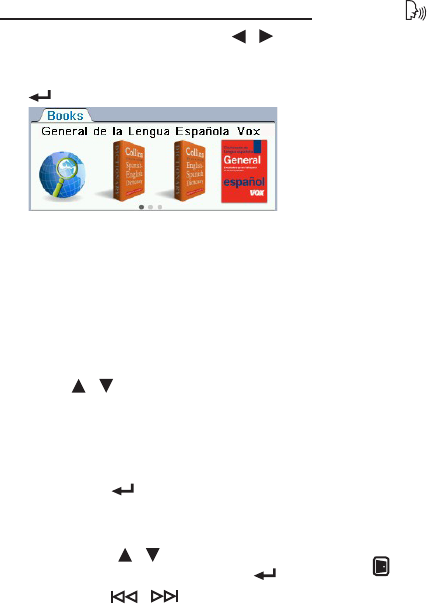
1. In the Books menu, press /
to select “General de la Lengua
Española Vox” and then press OK /
.
2. Type a word.
• See 3.17 Hints on Inputting Words.
• Witheachletteryoutype,the
resulting list of potential matching
entries is refreshed. If the letters you
typed match an entry in the word list,
it is automatically highlighted. Or,
press / to select another word
entry you see in the word list.
• Whenanentryishighlightedfor
about 3 seconds, a preview will show
automatically on the right.
3. Press OK / to view the entry.
• See 1.7 Browsing in the Device.
• Iftherearemultipleformswithinan
entry, press / to select the one
you want and then press OK / .
• PressFN + / to go to the
previous or next entry in the
dictionary or in a list of multiple
search results.
• Press to hear the headword
pronounced.
• Presslist to save the current
headword in My Word List for further
study or review. See 3.16 Adding
Words to My Word List and 4.5 My
Word List.
4. Type to start a new search.
Using Soft Keys
Press F1 to F5 that correspond to the
labels displayed along the bottom of the
screen.
• [DICT]: Goes to word search.
• [Example]: Goes to example search
or views usage examples of the
current entry. See 3.14 Searching
for Idioms, Usage Examples and
Collocations.
• [Idiom]: Goes to idiom search or
views idioms of the current entry.
See 3.14 Searching for Idioms, Usage
Examples and Collocations.
• [Inec.]: Shows inections/
conjugations. See 3.9 Looking Up
Inections.
• [ ]: Closes the current screen.