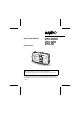
INSTRUCTION MANUAL Digital Camera VPC-R1EX VPC-R1E VPC-R1 Important note This manual explains how to safely operate the digital camera. Any information regarding only one of these products will be labeled as such. Please read these instructions carefully before using the digital camera. Make sure to read and understand the section “USING YOUR DIGITAL CAMERA SAFELY AND CORRECTLY” from pages 3 to 12. Keep this manual in a safe place for later reference.
Warning TO PREVENT THE RISK OF FIRE OR ELECTRIC SHOCK, DO NOT EXPOSE THIS APPLIANCE TO RAIN OR MOISTURE FOR AMERICAN USERS œ This equipment has been tested and found to comply with the limits for a Class B digital device, pursuant to Part 15 of the FCC Rules. These limits are designed to provide reasonable protection against harmful interference in a residential installation.
Declaration of Conformity Model Number Trade Name Responsible party Address Telephone No. : : : : : VPC-R1 SANYO SANYO FISHER COMPANY 21605 Plummer Street, Chatsworth, California 91311 (818) 998-7322 This device complies with Part 15 of the FCC Rules. Operation is subject to the following two conditions: (1) this device may not cause harmful interference, and (2) this device must accept any interference received, including interference that may cause undesired operation.
BEFORE READING THE MANUAL Apple, Macintosh and QuickTime are trademark or registered trademarks of Apple Computer, Inc. Windows is a registered trademark of Microsoft Corporation. CompactFlash is a trademark of SanDisk Corporation and handed over to CFA (CompactFlash Association). All other company and product names are registered trademarks or trademarks of their respective owners. Regarding the data storage media œ This digital camera uses CompactFlash cards for data storage.
Symbols used in this manual HINT More detailed explanations or cautionary notes. NOTE HELP Extra information about camera features and terminology. In case of problems, this may help in certain situations. CAUTION Points requiring special caution. v: Explanation for still images x: Explanation for sequential shots w: Explanation for video clips You can select different languages for the LCD monitor display (see page 67).
CONTENTS USING YOUR DIGITAL CAMERA SAFELY AND CORRECTLY . . . . . . . 3 CHECKING THE INCLUDED ACCESSORIES . . . . . . . . . . . . . . . . . . . . 13 B PREPARATION PART NAMES . . . . . . . . . . . . . . . . . . . . . . . . . . . . . . . . . . . . . . . . . . . . . 14 INSTALLING THE BATTERIES. . . . . . . . . . . . . . . . . . . . . . . . . . . . . . . . 15 INSTALLING THE CARD. . . . . . . . . . . . . . . . . . . . . . . . . . . . . . . . . . . . . 17 TURNING THE POWER ON/OFF . . . . . . . . . . . . . . . .
B PLAYBACK APPLICATIONS PLAYING IMAGES IN A SLIDE SHOW [v] . . . . . . . . . . . . . . . . . . . . . 48 MAGNIFYING (ZOOMING IN) THE IMAGE [v] [x] [w] . . . . . . . . 49 B OTHER FUNCTIONS COPYING IMAGES [x] [w] . . . . . . . . . . . . . . . . . . . . . . . . . . . . . . . 50 PROTECTING/ERASING IMAGE DATA. . . . . . . . . . . . . . . . . . . . . . . . . 51 COPYING TO THE CARD . . . . . . . . . . . . . . . . . . . . . . . . . . . . . . . . . . . . 55 USING WITH A COMPUTER . . . . . . . . . . . . . . . . . . .
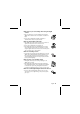
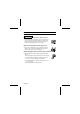
USING YOUR DIGITAL CAMERA SAFELY AND CORRECTLY CONCERNING THE DIGITAL CAMERA WARNING B If the digital camera makes a strange noise, emits a strange odor, or if smoke comes out from it, immediately turn off the power and remove the batteries œ If the digital camera is used under these conditions, it may cause a fire or electric shock. Immediately turn off the digital camera, remove the batteries, and wait to make sure no more smoke comes from the digital camera. Then take it to the dealer for service.
B Be aware of your surroundings when using the digital camera œ Pay close attention to your surroundings when using the digital camera. Failure to do so may lead to an accident or injury. œ Do not use the digital camera inside an airplane or elsewhere where its use may be restricted. B Do not get the digital camera wet œ This digital camera is not water-resistant. Do not allow it to get wet for it may cause a fire or electric shock. œ Do not use the digital camera in a bathroom.
USING YOUR DIGITAL CAMERA SAFELY AND CORRECTLY (CONCERNING THE DIGITAL CAMERA) WARNING B Do not use the flash close to a person’s face œ To prevent possible eye injury, do not use the flash near a person’s face (especially young children or babies). If the flash is used close to a person’s opened eyes, there is a risk that it may damage that person’s eyesight.
B Concerning the Batteries Concerning the supplied alkaline batteries œ Follow all the warnings indicated below to prevent the batteries from leaking, overheating, exploding, catching fire, or becoming damaged. œ Do not install with the polarities ((+) and (–)) reversed. œ Do not heat the batteries or throw them into a fire. œ Do not allow metal objects to touch the terminals. Do not carry loose with necklaces, hairpins, etc. œ Do not transform, open, or modify.
USING YOUR DIGITAL CAMERA SAFELY AND CORRECTLY (CONCERNING THE DIGITAL CAMERA) General precautions for the batteries œ Use the alkaline batteries or other specified batteries with this digital camera. Manganese batteries cannot be used, since they have a short battery life and may overheat, causing damage to the digital camera. œ Do not use alkaline batteries together with Ni-Cd batteries, or batteries of different types or different brands at the same time.
CAUTION B Cautions when carrying the digital camera œ Do not walk around holding the digital camera by the hand-strap. It may hit other objects and get damaged. When walking around, hold the digital camera in your hand or place it in a pocket. œ Be careful not to drop the digital camera or subject it to strong shocks. œ Make sure direct sunlight does not hit the digital camera lens, since that may damage the internal parts.
USING YOUR DIGITAL CAMERA SAFELY AND CORRECTLY Concerning the Accessories CAUTION B Cautions concerning the use of the AC adaptor œ Use only the separately sold AC adaptor (model VAR-G5EX for the VPC-R1EX, model VAR-G5E for the VPC-R1E and model VAR-G5U for the VPC-R1) with your digital camera. Do not use an AC adaptor other than the one indicted here, designed for specific use with your digital camera.
B Cautions when cleaning the digital camera œ Do not use benzene or thinner products to clean the digital camera. Doing so may cause deformation, discoloration, or peeling of paint. When using a chemically treated cloth, carefully read its instructions and warnings. œ Do not spray insecticides or volatile sprays on the digital camera. Do not leave rubber or vinyl objects against the digital camera for a long period. They may cause deformation, discoloration, or peeling of paint.
B Cautions concerning condensation œ Using the digital camera with condensation inside it may damage the digital camera. Be careful of condensation under the following conditions: œ When moving the digital camera suddenly from a cold place to a warm place. œ When the ambient temperature changes drastically, such as when a heater is turned on to quickly heat the room. œ When the digital camera is placed in the path of cool air from an air conditioner.
B Cautions when handling the CompactFlash œ The CompactFlash card is a precision device. Do not bend, drop, or subject it to strong forces or shocks. œ Avoid using or storing the CompactFlash card in places with extremely high or low temperatures, subject to direct sunlight, in a completely closed vehicle, near air conditioners or heaters, or in humid or dusty locations.
CHECKING THE INCLUDED ACCESSORIES œ Hand-strap œ 4 alkaline batteries œ Dedicated USB interface cable œ Software: CD-ROM (Sanyo Software Pack) USING THE HAND-STRAP Attach the supplied hand-strap to the digital camera to aid in carrying. Bend the looped end to slip it through the strap holder.
PART NAMES Front 1 2 3 4 Shutter release button Viewfinder Flash USB terminal For connecting to a computer with the supplied USB interface cable. 5 Self-timer indicator 6 Lens 7 DC IN terminal (for external DC power input) For connecting the VAR-G5EX/E/U AC Adapter (sold separately).
INSTALLING THE BATTERIES Use the four alkaline batteries. To use other batteries, please see “To use other batteries” on page 16, and choose batteries suitable for use with this camera. 1 Set the main switch to [MONITOR OFF] or [Õ]. 2 Close the lens cover. 3 4 Open the battery compartment cover on the bottom of the camera. œ Slide the cover out, then open it. Insert the batteries. œ Make sure the polarity (+ and –) of the batteries is as indicated. 5 Close the battery compartment cover.
CAUTION Do not use manganese batteries. œ In addition to offering only a short battery life, manganese batteries release heat which may cause damage to the camera. Do not open battery cover while camera is turned on. œ Do not open the battery cover while the camera is operating. Doing so may cause the loss of memory data. Sanyo cannot take responsibility for any damage arising from such operation.
INSTALLING THE CARD Although the camera can store pictures in its internal memory, the use of a memory card is recommended since only a limited number of pictures can be saved to the internal memory. œ Before you first use a memory card (separately sold KA-DSM-C32G CompactFlash) with the digital camera, it is necessary to format it using this camera. Also, to use a card that was formatted with a computer or another camera, it is necessary to reformat it with this camera.
B To remove the card... œ Pull the card slowly out with your fingertips. CAUTION Do not remove the card when the camera is on. œ Take care not to remove the card when the camera is on, because doing so may cause the data on the card to be lost. Sanyo shall not be held responsible for any data that is damaged or lost in this manner. HINT œ Inserting a memory card allows picture storage to and playback from that card; the camera’s internal memory is used for storage and playback when no card is installed.
INSTALLING THE CARD Reformatting a card 1 2 3 4 After inserting a card, set the main switch to [Õ] and open the lens cover. Press the [MODE] button to show the following screen. Press [j] on the arrow button, then press [c] to select the [Ø] icon. Press the [SET] button. œ The Options screen appears. 5 18 Press [l] to select [REFORMAT].
6 Press the [SET] button. œ The Reformat screen appears. 7 REFORMAT REFORMAT CANCEL Press [j] to select [REFORMAT], and then press the [SET] button. œ Reformatting begins. œ During reformatting, [DO NOT POWER OFF] is displayed. œ When reformatting has completed, the display returns to the Options screen. CAUTION Do not turn off the digital camera while it is reformatting the card. œ When reformatting begins after step 7, do not turn off the camera. Reformatting a memory card will erase all data.
TURNING THE POWER ON/OFF Turning the power On The procedures to turn the power on when taking pictures and when playing back images are different. When taking pictures 1 Set the main switch to [MONITOR OFF] or [Õ]. MONITOR OFF: The LCD monitor is not used. Õ: 2 Standby indicator The LCD monitor is used. Open the lens cover. œ The power turns on, and the standby indicator in the viewfinder lights green. When playing back images 1 Set the main switch to [Ô].
Turning the power on when the power save function is active To save battery power, the power save function automatically turns off the power after a period of no operation (about 1 minute in the shooting mode or about 5 minutes in the playback mode). To restore power when in the power save mode, perform one of following steps. œ Close and open the lens cover (only in the shooting Shutter mode). release button œ Press the shutter release button once. œ Press the [MODE] button.
3 SHOOTING MODES This camera has three different shooting modes to choose from: still image, sequential shot, and video clip. Set the desired shooting mode before taking pictures. œ Still image shooting mode: For taking still pictures. œ Sequential shot shooting mode: For taking several pictures in quick succession. œ Video clip shooting mode: For recording video clips. 1 Open the lens cover, and set the main switch to [Õ]. œ An image appears on the LCD monitor. 2 Press the [SET] button.
SHOOTING STILL IMAGES 1 Set the camera to the still image shooting mode (see page 23). 2 Point the camera at the subject. Correct hold Keep your elbows close to your body. Incorrect hold A finger is blocking the lens. Your fingers or the strap should not be in front of the lens or the flash. 3 Press the shutter release button. 1 Center the subject in the viewfinder, press the shutter release button halfway and hold it there. œ Camera settings such as the exposure, are automatically set.
SHOOTING STILL IMAGES Important points when capturing images When the next picture cannot be taken... œ When the standby indicator is flashing, the next picture cannot be taken. When the indicator lights, the next picture can be taken. When the shutter release beep sounds are desired... œ You can change the setting so that the camera makes a beep sound when the shutter release button is pressed (see page 65). To save battery consumption...
SEQUENTIAL SHOTS Two types of sequential shot functions are available. In the standard sequential shot mode, images are taken at 0.5-second intervals. In the AE shift sequential shot mode, three sequential images are taken at different exposures (brightnesses). Standard sequential shot ø: With the same exposure rate and at 0.5-second intervals, 3 sequential shots are taken. AE shift sequential shot A: The exposure (shutter speed) is automatically changed as three sequential shots are taken.
SEQUENTIAL SHOTS 4 Capture the pictures. Shutter release button 1 Center the subject in the viewfinder, press the shutter release button halfway and hold it there. œ Camera settings such as the exposure are automatically set. LCD monitor [SET] button 2 Press the shutter release button all the way. œ Shooting starts. œ When three pictures have been taken, sequential shot shooting stops. œ Refer to page 25 for important points to consider when capturing images.
VIDEO CLIPS 1 2 Set the shooting mode to the video clip shooting mode (see page 23). Take a video clip. 1 Center the subject in the viewfinder, press the shutter release button halfway and hold it there. œ Camera settings such as the exposure are automatically set. 1:05 Shutter release button LCD monitor 2 Press the shutter release button all the way. œ Shooting starts. œ The [K] indicator and the remaining shooting time indicator appear on the LCD monitor during recording.
3 PLAYBACK MODES The three playback modes are: still image, sequential shot, and video clip. Set the appropriate playback mode before starting playback. œ Still image playback mode: For viewing still image shots. œ Sequential shot playback mode: For viewing sequential shot images. œ Video clip playback mode: For playing back video clips. 1 Set the main switch to [Ô]. œ An image appears on the LCD monitor. 2 Press the [MODE] button. œ The Playback Settings screen is displayed.
1 Playback Mode menu v: Still image icon 100-0046 x: Sequential shot icon w: Video clip icon Ø: Options icon 4 2 9-image display icon 3 Playback zoom icon 2001/06/15 4 Image protect icon 5 Image erase icon 6 Print icon œ In sequential shot and video clip playback modes, the copy icon [l] is shown.
PLAYING BACK STILL IMAGES Playing back still images one by one 1 2 Set the playback mode to the still image playback mode (see page 29). Press [d] or [c] on the arrow button. [d]: To display the previous image. [c]: To display the next image. Playing back several images at once (9-image display playback) 1 2 Set the playback mode to the still image playback mode (see page 29). 100-0046 Press the [MODE] button. œ The Playback Settings screen is displayed. 3 Press the [SET] button.
PLAYING BACK SEQUENTIAL SHOTS 1 2 Set the playback mode to the sequential shot playback mode (see page 29). Press [d] or [c] on the arrow button. [d]: To display the previous image. [c]: To display the next image. 3 Press the [MODE] button. œ The Playback Settings screen is displayed. 4 Press the [SET] button. œ The 9-image display appears. œ Each image is displayed with its folder number.
PLAYING BACK VIDEO CLIPS 1 Set the playback mode to the video clip playback mode (see page 29). œ The 9-image display appears. œ Each image is displayed with its assigned image number. 2 Use the arrow button to move the [u] mark to the desired video clip. Image number 0042 3 Press the [SET] button. Selecting mark 0043 0044 0045 œ The selected image is displayed full-screen. 4 Play back the clip. œ Normal playback Press the [SET] button.
Video clip 0001 Video clip 0002 Video clip 0003 Video clip start Video clip end [SET] button: Play [SET] button: Play [G]: Jump to start of video clip 0002 [H] during Pause: Jump to start of video clip 0002 [SET] button: Play from start of video clip 0001 [G] during Playback: Jump to start of current video clip [H] during Playback: Jump to end of current video clip HELP If the full-screen display appears in step 1... œ Skip to step 4.
SHOOTING SETTINGS SCREEN 1 Set the shooting mode (see page 23). [MODE] button LCD monitor 2 Press the [MODE] button. œ The Shooting Settings screen appears on the LCD monitor. œ The appearance of the Shooting Settings screen differs depending on the currently active shooting mode.
3 Resolution menu ‹: 1280 x 960 pixels icon 4: 640 x 480 pixels icon 2: 320 x 240 pixels icon 0: 160 x 120 pixels icon 4 Compression rate menu D: Low compression icon G: Moderate compression icon 5 Sequential shot mode menu ø: 0.
ADJUSTING THE IMAGE QUALITY The resolution and compression rate can be changed to adjust the image quality. Set the image resolution ([v] [x] [w]) At higher resolutions, the image quality is clear and beautiful. But because the data size is also large, the number of pictures that can be taken and the recording time becomes less. Adjust the resolution to match your needs, either for higher picture quality or for quantity. 1 2 Display the Shooting Settings screen (see page 35). Select the resolution menu.
4 Press the [SET] button. œ The selected resolution is set. B To exit the Shooting Settings screen, press the [MODE] button. HINT œ The resolution setting is retained until you change it. NOTE About the resolution and compression rate (see page 39) settings œ The image captured by a digital camera is comprised of a collection of small dots. The resolution refers to the number of these dots; the greater the number, the higher the image quality.
ADJUSTING THE IMAGE QUALITY Changing the data size (compression rate) [v] [x] You can set the compression rate for the captured image data. When you increase the compression rate setting, the data size becomes smaller even for pictures taken at the same resolution; at a lower compression rate, the best image quality is ensured. 1 2 3 Display the Shooting Settings screen (see page 35). Select the compression rate menu.
TAKING PICTURES WITHOUT USING THE LCD MONITOR [v] [x] [w] You can turn off the LCD monitor and take pictures using the viewfinder. Turning off the LCD monitor saves battery power. 1 Open the lens cover and set the main switch to [MONITOR OFF]. 2 Point the camera at the subject. 3 Compose the image. œ Look through the viewfinder and aim the camera so that the light-measuring area is in the center of the subject. 4 Shutter release button Press the shutter release button.
TAKING CLOSE-UP PICTURES (MACRO PHOTOGRAPHY) ([v] [x] [w]) Use the macro photography focus to take pictures at close range (20 to 50 cm). 1 Set the main switch to [Õ]. 2 Open the lens cover. 3 Set the macro switch to [£]. Macro switch œ The macro indicator [¢] appears on the LCD monitor. 4 Compose the picture, and press the shutter release button. œ If the main switch is set to [MONITOR OFF], you can take pictures without using the LCD monitor (see page 40).
USING THE SELF-TIMER [v] [x] [w] 1 Display the Shooting Settings screen (see page 35). 2 Select the self-timer menu. 3 Select [U] from the self-timer menu. Self-timer menu 18 œ Press [c] on the arrow button to select the self-timer mode. U: Self-timer on (the self-timer will be used) V: Self-timer off (the self-timer will not be used) 4 Press the [SET] button. œ The desired self-timer mode is set. œ To exit the Shooting Settings screen, press the [MODE] button.
USING THE FLASH [v] The flash is used not only in dark conditions, but also when the subject is in the shade or is lit from the back. The four flash modes (automatic flash, forced flash, flash off, and red-eye reduction) allow you to select the mode appropriate for the surrounding conditions. The flash can be used only in the still image shooting mode. Note that the effective flash range is 0.5 to 2.1 m for normal photography, and 0.2 to 0.5 m for macro photography.
j: (flash off) The flash will not operate even under dark conditions. Use this setting when taking a picture in a location where flash photography is prohibited, or when shooting a night landscape scene. ›: (red-eye reduction) When using the flash, the digital camera will operate in a way that reduces the red reflection (“red-eye”) in the subject’s eyes. 4 Press the [SET] button. œ The selected flash mode is set. œ To exit the Shooting Settings screen, press the [MODE] button.
EXPOSURE CORRECTION [v] [x] [w] You can change the brightness (exposure) of the image when you take the picture. 1 2 Display the Shooting Settings screen (see page 35). Select the exposure correction icon [Ê]. œ The exposure correction bar appears. 3 Press [d] or [c] on the arrow button to adjust the exposure. œ Pressing [d] or [c] moves the pointer on the exposure correction bar to the left or right, changing the exposure. œ To exit the Shooting Settings screen, press the [MODE] button.
HINT œ The exposure correction is canceled when the main switch is set to [Ô] or [MONITOR OFF], when the camera is turned off, or when the pointer is moved to the center position. œ Moving the pointer away from the center position will change the exposure. Shortcut for setting the exposure correction œ Any time the Shooting Settings screen is not shown and you press [c] or [j] on the arrow button, the exposure correction icon appears, allowing you to change the setting.
USING THE ZOOM [v] [x] [w] The subject can be enlarged (zoomed in) when you take a picture. 1 2 Display the Shooting Settings screen (see page 35). 18 Select the zoom icon [ï]. W œ The zoom bar appears. 3 4 Press [d] or [c] on the arrow button to adjust the zoom rate. œ To exit the Shooting Settings screen, press the [MODE] button. T Zoom bar Make smaller Make larger Pointer Take the picture.
PLAYING IMAGES IN A SLIDE SHOW [v] Images can be played back in slide show fashion. 1 Select the still image playback mode (see page 29). œ If the Playback Settings screen appears, press the [MODE] button to exit it. 2 Press and hold [j] or [l] on the arrow button until the [SLIDE SHOW] indicator appears. œ Images are played in succession at 4-second intervals. [j]: Images are displayed in reverse order. SLIDE SHOW [l]: Images are displayed in the normal order. 3 To stop the slide show ...
MAGNIFYING (ZOOMING IN) THE IMAGE [v] [x] [w] The recorded images can be magnified when they are played back. In addition to still images and sequential shots, video clip images can be magnified when in the pause mode. 1 2 Display the image you wish to magnify. Display the Playback Settings screen (see page 29). 3 Select the playback zoom icon [O]. 4 Press the [SET] button. 100-0046 œ The image is magnified and the central portion of the original image is displayed.
COPYING IMAGES [x] [w] You can select an image from a sequential shot or video clip, copy it, and save it as a still image. 1 2 Play back a sequential shot or video clip, and display the desired image. 100-0005 Display the Playback Settings screen (see page 29). 3 Select the copy icon [l]. 4 Press the [SET] button. œ The Copy screen appears. [YES]: Saves the displayed image as a still image.
PROTECTING/ERASING IMAGE DATA Images that you no longer want to keep can be erased from the card. In addition, you can protect stored image data from accidental erasure with the protect function. œ To protect and delete data stored in the camera’s internal memory, do not insert a memory card. Image data protect Still images and sequential shots are protected one frame at a time, and video clips are protected one clip at a time. 1 2 Display the image that you want to protect from accidental erasure.
5 Select [YES], and press the [SET] button. œ The image data is locked. œ Images that are protected appear with the protect indicator [Ñ]. UNLOCK? ª YES EXIT º CAUTION œ Even if images are protected, they will be erased if reformatting is performed (see page 19). HINT To continue setting the protect mode for other image data... œ After step 5, press [d] or [c] to display the desired image, and repeat step 4. To cancel the protect mode for an image...
PROTECTING/ERASING IMAGE DATA Erase unneeded data Images and video clips can be erased one frame at a time, or groups can be erased one group at a time. 1 2 Display the data that you want to erase. Display the Playback Settings screen (see page 29). 3 Select the erase icon [q]. 4 Press the [SET] button. 100-0046 ERASE œ The Erase Mode Selection screen appears. [ONE ERASE]: Erases one still image at a time. [GROUP ERASE]: Erases all the still images.
[ONE ERASE]: Erases all the images in the displayed video clip. [GROUP ERASE]: Erases all the video clips. [EXIT]: 5 Returns to the Playback Settings screen. Press [j] or [l] on the arrow button to select the desired erase mode, and press the [SET] button. œ The Erase Confirmation screen appears. [YES]: The selected data will be erased. ERASE ONE? o YES EXIT p [EXIT]: The selected data is not erased, and the display returns to the Erase Mode Selection screen.
COPYING TO THE CARD You can copy internal memory data to the card. 1 Insert a card and display the Shooting Settings screen. Shooting mode menu 18 œ The following steps can also be performed from the Playback Settings screen (see page 29). 2 Select [Ø] from the shooting mode menu. 3 Press the [SET] button. 4 œ The Options screen appears. CLOCK SET LANGUAGE REFORMAT BEEP COPYTO CF Select [COPY TO CF], and press the [SET] button. COPY TO CF œ The Card Copy screen appears.
USING WITH A COMPUTER Install the software on the included CD-ROM (Sanyo Software Pack) before connecting the camera to a computer. The camera can be accessed as an external drive when connected to a computer. See the Sanyo Software Pack instruction manual for more information about software installation. 1 2 Turn off your digital camera (see page 21). Connect the camera plug of the dedicated USB interface cable to the camera, and the computer plug to the computer.
PRESERVING THE RECORDED IMAGES Saving images The captured pictures can be saved by downloading to your computer’s hard disk, or by printing through a lab service. œ To save images to a computer, please see the instruction manual of the Sanyo Software Pack (included CD-ROM). œ To use a lab service, please contact a digital print service for digital cameras or access an Internet print service.
Directory configuration of recorded data MISC (DPOF file location) DCIM ROOT SYSTEM (Card information data storage location) 100SANDS Folder number SANY0001.jpg SANY0002.jpg File name SANY0003.jpg 101SANDS SANY1001.jpg SANY0004.jpg SANY1002.jpg SANY0998.jpg 102SANDS SANY1999.jpg SANY0999.jpg SANY2001.jpg SEQT0001 SANY2002.jpg Files will be stored in the 100SANDS folder until up to 999 still images, 99 sequential shot folders, or 999 video clips have been recorded.
REQUESTING PRINTING You can have phtographs made of the still images using a printer or taking them to a shop that provides digital print services. To have images from sequential shots and video clips printed, the images must first be copied and saved as still images (see page 50). Also, to print images that are stored in the internal memory, first copy the images to a card (see page 55) and follow the steps below. 1 2 Insert a card and display the still image you wish to have printed (see page 31).
5 Select [STD PRINT], and press the [SET] button. œ The Copies Printout screen appears. STD PRINT œ Press [d] or [c] to continue settings for other images. 6 j 0 l Press [j] or [l] on the arrow button to specify the number of prints. œ The number of prints can be set from 0 to 10. 7 Press the [SET] button. œ This completes the setting for the number of prints. œ The display returns to the Print Setting screen. œ To continue setting the number of prints for the other image data, repeat steps 5 to 7.
SETTING THE DATE AND TIME The clock in the digital camera records the date and time that a picture is taken and can display it during playback. To display the date and time when playing back images, the date and time settings must be completed before the pictures are taken. Example: To set the clock to 7:30 p.m., August 28, 2002 1 Display the Shooting Settings screen. Shooting mode menu 18 œ The following steps can also be performed from the Playback Settings screen (see page 29).
5 Set the date. œ The date is set in YEAR Ö MONTH Ö DAY order. CLOCK SET j 2001/06/01 l 1 Press the [SET] button. œ The year indication changes to orange. [j]: The number decreases. [l]: The number increases. [SET] button or [d] [c]: Moves to the next item. 2 After the date has been set, press the [SET] button. CLOCK SET 2002/08/28 00:00 ON Y/M/D EXIT 6 Set the time. CLOCK SET œ The time is set in HOUR Ö MINUTE order.
SETTING THE DATE AND TIME 7 Set the date display. 1 Press [l] to select [DISP]. CLOCK SET 2002/08/28 19:30 ON Y/M/D EXIT 2 Press the [SET] button. œ The current indication changes to orange. 3 Press [l]. œ Each time [l] is pressed, the display changes in the following order: œ Each time [j] is pressed, the display changes in the reverse order. œ If “OFF” is selected, the date is not shown during playback. 4 After selecting the date display, press the [SET] button.
HINT If the date and time are not set... œ June 1, 2001, 00:00 (midnight) becomes the set time, and during playback the displayed time will show as “2001/06/01 00:00”. To correct the date and time setting 1 On the screen in step 4, press [l] on the arrow button to select the line you wish to correct. 2 Press [c] to select the indication you wish to correct. 3 Press [j] or [l] on the arrow button to correct the indication. 4 Press the [SET] button. Check the clock after changing the batteries.
SETTING THE OPERATION SOUND You can set whether or not the operation confirmation sound (beep) is heard when the shutter release, [SET], [MODE], or other button is pressed. 1 Display the Shooting Settings screen. Shooting mode menu 18 œ The following steps can also be performed from the Playback Settings screen (see page 29). 2 Select [Ø] from the shooting mode menu. 3 Press the [SET] button. œ The Options screen appears.
HINT œ The beep sound setting is retained even if the main switch is set to [Ô] or [MONITOR OFF], or if the power is turned off. œ The beep sound volume cannot be adjusted.
CHANGING THE DISPLAY LANGUAGE You can select from the following languages for the LCD monitor display: Japanese, English (initial setting), French, German, Spanish 1 Display the Shooting Settings screen. Shooting mode menu 18 œ The following steps can also be performed from the Playback Settings screen (see page 29). 2 Select [Ø] from the shooting mode menu. 3 Press the [SET] button. œ The Options screen appears.
4 Select [LANGUAGE], and press the [SET] button. œ The Language Setting screen appears. œ Select from Japanese, English, French, German, and Spanish. 5 LANGUAGE ENGLISH FRANCAIS DEUTSCH ESPA Ñ OL Select the language, and press the [SET] button. œ The display language is set, and the display returns to the Options screen. HINT œ The display language setting is retained even if the main switch is set to [Ô] or [MONITOR OFF], or if the power is turned off.
CHECKING THE REMAINING BATTERY CHARGE The remaining battery charge can be confirmed on the LCD monitor, and it is recommended that you check it before taking pictures. For information on the battery operation time, please see “Battery Operation” on page 79. 1 Set the main switch to [Ô] or [Õ]. œ If the main switch is set to [Õ], open the lens cover. 2 Select any shooting or playback mode other than [Ø]. œ The remaining battery charge is indicated in the lower-right corner of the LCD monitor.
HELP If the LCD monitor suddenly turns off... œ When taking pictures using the LCD monitor and the battery charge becomes low, the LCD monitor may turn off briefly. This is to suppress battery power consumption when the flash is recharging. When the flash has recharged, the LCD monitor will turn on again. HINT œ Depending on the characteristics of the batteries, the [èç] indication may appear prematurely when the temperature is low.
CHECKING THE REMAINING NUMBER OF IMAGES AND RECORDING TIME For information about the card’s and internal memory’s capacity, please see “Possible No. of Images/possible Shooting Time” on page 80. œ To check the number of pictures or time remaining in the camera’s internal memory, do not insert a memory card. 1 Set the main switch to [Õ]. 2 Open the lens cover. œ Select any shooting mode other than [Ø].
Shooting Power TROUBLESHOOTING Problem Cause & Solution The power does The batteries are consumed. ⇒Replace with new batteries. not turn on. The batteries are not inserted correctly. ⇒Reinsert the batteries, making sure the polarity (+ and –) is as indicated. The battery compartment cover is not fully closed. ⇒Close the battery compartment cover completely. Due to cold temperatures, the batteries temporarily lost their power.
TROUBLESHOOTING LCD monitor Shooting Problem The flash does not work. 73 Cause & Solution The flash off mode is set. ⇒Set the flash to the forced flash mode or automatic flash mode. The camera has detected that the subject is bright enough and does not require the flash. ⇒This is not a malfunction. Take the picture as is. The batteries are consumed. ⇒Replace with new batteries. The brightness The exposure may not change in some instances, doesn’t change depending on the surrounding brightness.
Viewing images Problem The focus does not work. The image is too dark. The image is too bright. The colors of images taken indoors are not correct. Cause & Solution The subject is too close to the camera. The macro switch setting is not correct. ⇒For distances between 20 and 50 cm, set the macro switch to [£] (macro photography). For subjects at least 50 cm from the camera, set the macro switch to normal photography (no macro photography indication).
TROUBLESHOOTING Viewing images Problem A part of the picture is missing. No image ([?] is displayed.) An image number seems to be missing in the 9-multiple display [NO IMAGE] appears. Vertical stripes are present in the image. Other [MEMORY FULL] appears. [CARD FULL] appears. 75 [PROTECTED] appears and images can’t be erased. Some images can’t be erased. English Cause & Solution The lens was blocked by a finger or the hand-strap.
Other Problem The camera cannot be operated. [SYSTEM ERROR] is displayed. Cause & Solution P. A temporary internal circuitry problem may be the cause. ⇒Remove the batteries from the camera, wait a few minutes, then reinstall the batteries and try again. A problem has occurred within the camera or card. ⇒Try the following measures. 1Remove the card, and then install it again. 2Remove the batteries, and then install them — again. 3Remove the batteries, wait about 1 hour, and then install them again.
SPECIFICATIONS Digital Camera Type Recording system Image file format Data storage media Image sensor Recording resolution Video clip frame rate Data compression White balance Lens 77 English CCD digital camera (recording and playback) Digital recording Still images: JPEG format (DCF and DPOF compliant) Note: Designed mainly by Japan Electronic Industry Development Association (JEIDA), DCF (Design rules for camera file system) is standard for digital still camera image files to provide interoperabil
Aperture Exposure control type F2.8, F5.6 (automatic) Aperture and shutter programmable exposure control Exposure correction available from the Shooting Setting Screen Range 50 cm to infinity (normal photography), 20 cm to 50 cm (macro photography) Digital zoom For shooting Resolution 4: 1x to 2.0x Resolution 2 0: 1x to 4.0x For playback 1x to 20x (varies with the resolution) Shutter Still image shooting mode: 1/4 to 1/500 sec. (Flash: 1/30 to 1/500 sec.
SPECIFICATIONS Power supply Battery AC adapter (sold separately) Dimensions Weight 4 AA alkaline batteries also: 4 AA Ni-Cd batteries (Sanyo N-3US) 4 AA Ni-MH batteries (Sanyo HR-3USV) 2 lithium batteries (CR-V3) œ Manganese batteries cannot be used. VAR-G5EX (for VPC-R1EX) VAR-G5E (for VPC-R1E) VAR-G5U (for VPC-R1) 121 (W) x 65 (H) x 38 (D) mm Approx. 180 g (without batteries and card) Digital Camera Connectors USB terminal DC IN (external DC power input) terminal USB connector USB port DC 7.
Possible No. of Images/Possible Shooting Time This table shows the possible number of images and possible shooting times when using a commercially available 32MB CompactFlash card and the internal memory.
ICON INDEX Shooting mode display b Shooting settings indicators v x w Ø Ê ï ¢ K Still image icon. . . . . . . . . . . . . . . . . . . . . . . . . . . . . . . . . . . . . . . 23, 35 Sequential shot icon . . . . . . . . . . . . . . . . . . . . . . . . . . . . . . . . . . 23, 35 Video clip icon . . . . . . . . . . . . . . . . . . . . . . . . . . . . . . . . . . . . . . . 23, 35 Options icon. . . . . . . . . . . . . . . . . . . . . . . . . . . . . . . . . . . . . . . . . . . . 35 Exposure correction icon . .
SANYO Electric Co., Ltd.