
User's Guide


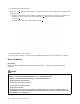

Table Of Contents
- About this documentation
- Chapter 1. Meet your computer
- Chapter 2. Get started with your computer
- Chapter 3. Explore your computer
- Chapter 4. Accessories
- Chapter 5. Secure your computer and information
- Chapter 6. Configure advanced settings
- Chapter 7. CRU replacement
- Chapter 8. Help and support
- Appendix A. Important safety information
- Appendix B. Accessibility and ergonomic information
- Appendix C. Supplemental information about the Linux operating system
- Appendix D. Compliance information
- Appendix E. Notices and trademarks

6. Install a new M.2 solid-state drive:
Note: For slot
a , a translucent film might cover the thermal pad. Peel off the film before installing a M.2
solid-state drive.
a. Align the contact edge of the new M.2 solid-state drive with the key in the slot. Then, carefully insert
the drive into the slot at an angle of about 20 degrees
1 and pivot the M.2 solid-state drive
downward
2 .
b. Install the screw to secure the M.2 solid-state drive
3 .
7. Reinstall the base cover assembly.
8. Turn over the computer. Connect the ac power adapter and all disconnected cables to the computer.
Coin-cell battery
Prerequisite
Before you start, read Appendix A “Important safety information” on page 61 and print the following
instructions.
DANGER
If the coin-cell battery is incorrectly replaced, there is danger of an explosion. The coin-cell battery
contains a small amount of harmful substance. To avoid possible injury:
• Replace only with a battery of the type recommended by Lenovo.
• Keep the battery away from fire.
• Do not expose it to excessive heat.
• Do not expose it to water or rain.
• Do not short-circuit it.
• Do not drop, crush, puncture the battery, or make it subject to strong forces. Battery abuse or
mishandling can cause the battery to overheat, which can cause gasses or flame to "vent" from
the battery or coin-cell battery.
52
P1 Gen 3/X1 Extreme Gen 3 User Guide