
User guide





ES9600 User Guide Chapter 3: Player Interface – LCD
19 Version 1.13
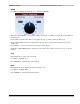
4. Press <ENTER> to access the function pages ‘within’ each Icon
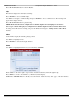
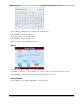
Use the main menu page to access all of the functionality of the ES9600. The Main Menu display consists of a
number of screen icons. Rotate <ENC> as needed to bring each icon into view:
Ch. 1 Status – Manage the Video for Channel 1/Output 1
Ch. 2 Status – Manage the Video for Channel 2/Output 2 (NOTE: Not displayed in default mode – Refer
to Settings – Video Settings)
Settings – Manage Player performance settings
Lock – PIN access to Lock/Unlock the player
Help – (FUTURE)
About – Player Firmware Versions
Each menu page and any sub-pages will be described in the following sections.
Ch.1 Status / Ch. 2 Status
Both menu pages are identical except as noted below.
NOTE: The Video Mode feature is not supported on Channel 2 - see Video Mode below.
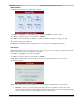
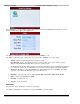
In the Main Menu, rotate <ENC> to select Ch. 1 Status or Ch. 2 Status (when in 2-Channel Video mode) then
press <ENTER> to open the status display:
The display shows the current ‘state’ of Channel 1 (or Channel 2) whether Playing, Paused or Stopped along with
a progress bar and current clip time hour:min:sec:frame and total clip length in hour:min:sec:frame.
NOTE: The ‘frame’ segment of the counter is not updated during playback thus only hour:min:sec fields will be
active. When in ‘Paused ’, ‘Frame’ or ‘Shuttle’ mode the counter will show the frame number.
NOTE: ‘Trick’ features (Frame Mode, Shuttle Mode) are not supported with 48fps DCPs.
Rotate <ENC> to highlight in turn:
Playlist
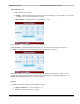
This window displays the currently loaded Playlist.
Press <ENTER> to access available Playlists.
Use <ENC> to navigate to a different Playlist and press <ENTER> to choose a different one. The new Playlist
will appear in the display window.