
User Guide User Manual



FOX 3G DVC • Operation 19
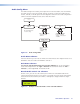
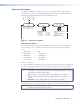
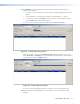
4. On the Add Device window, select FOX 3G DVC from the Device Name drop-down menu.
Figure 20. Device Name Drop-down Menu on the Add Device Window
5. From the Connection Method drop-down menu, select RS-232 or USB. (Make sure
that the computer is connected to the appropriate port; see “Connecting for Remote
Control” in the “Installation” section.)
6. If using RS-232, select the appropriate options from the Com Port and Baud Rate
menus (this information is provided by your system administrator).
7. Click Connect. If the connection is successful, FOX 3G DVC is displayed in green and
followed by a check mark in the Connected Device section.
8. Click the Browse button in the New Firmware File (Optional) section.
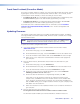
9. On the Open window, navigate to the new firmware file, which has an .s19 extension,
and double-click it. The Open window closes.
Figure 21. Open Window for the Firmware Loader
CAUTION: Valid firmware files must have the file extension .s19. A file with any
other extension is not a firmware upgrade for this product and could
cause the DVC to stop functioning.